Search and Filter Item Data in 42feeds
Author: Hello 42feeds Steps: 15 Source: Supademo
Interactive Demo
Try this tutorial directly in your browser:
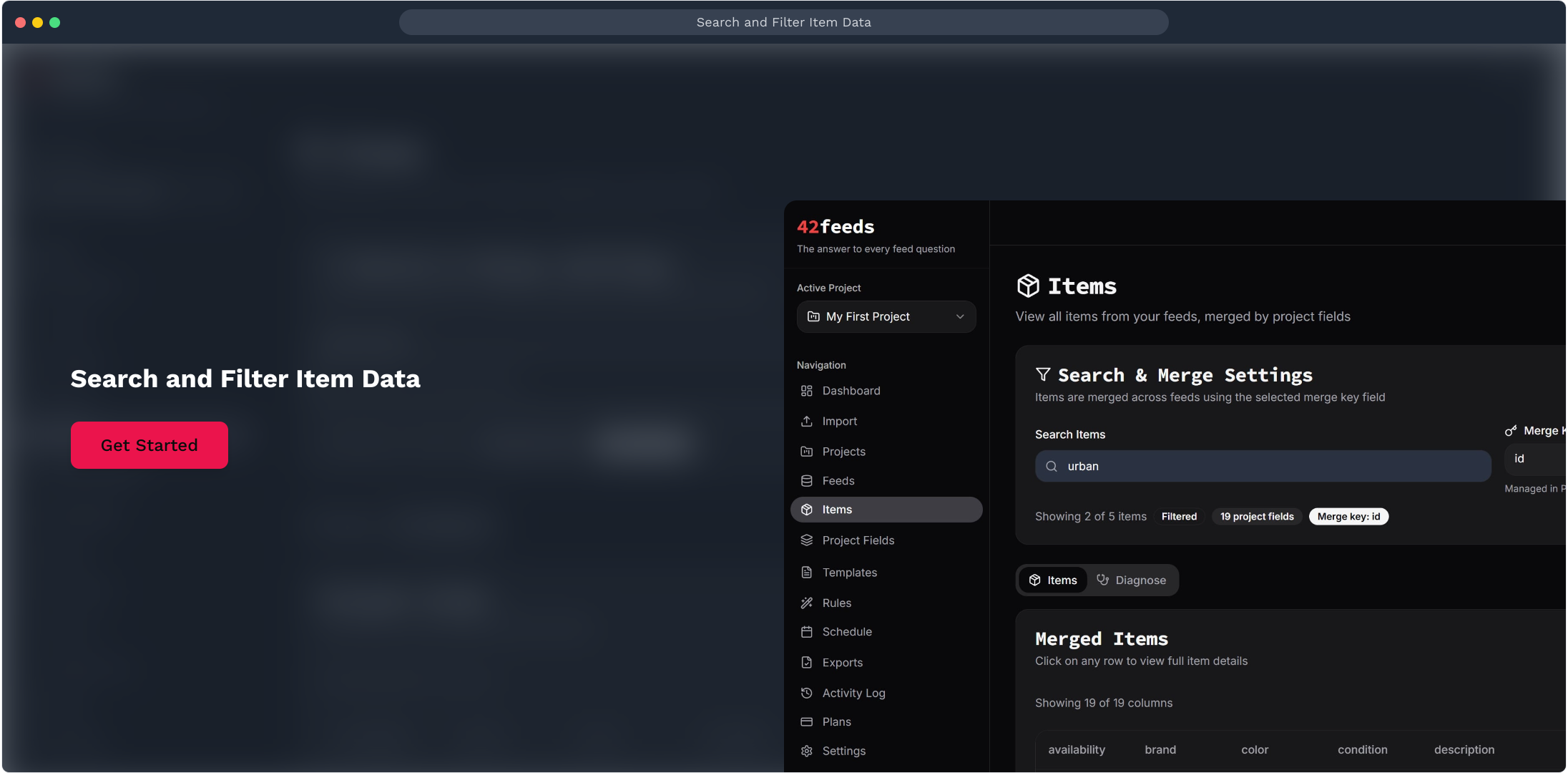
1. Search and Filter Item Data
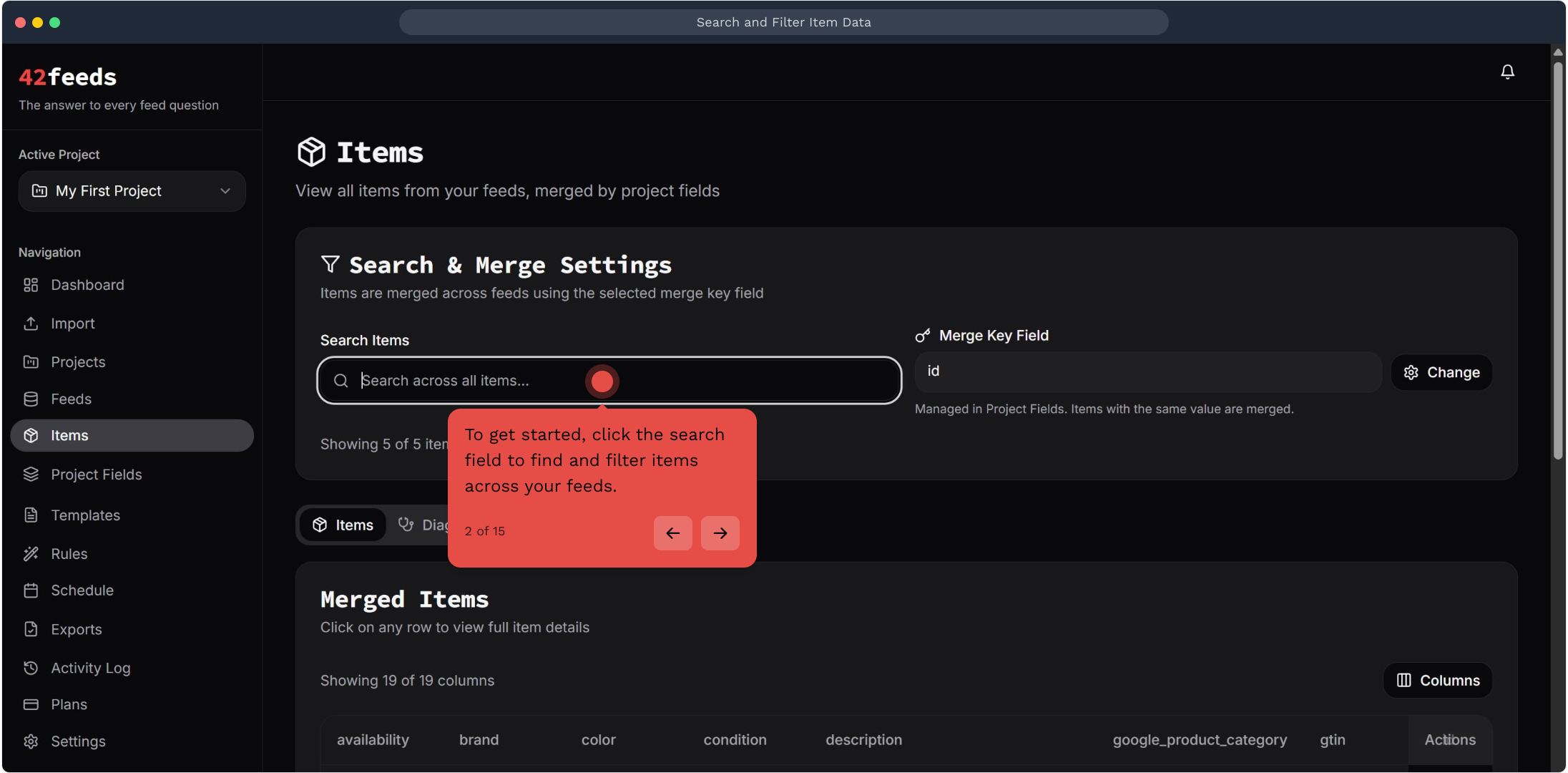
2. To get started, click the search field to find and filter items across your feeds
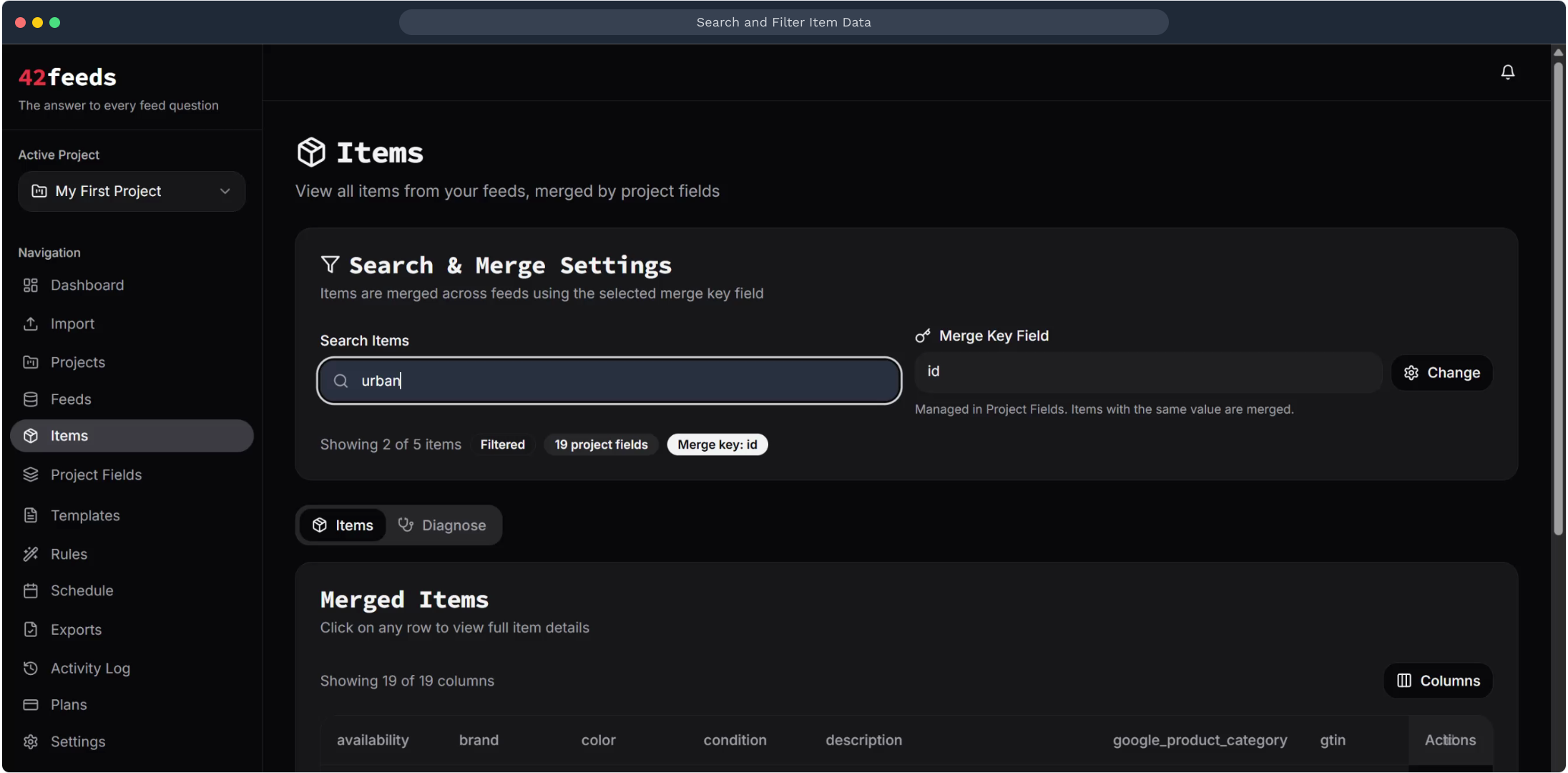
3. Video Step
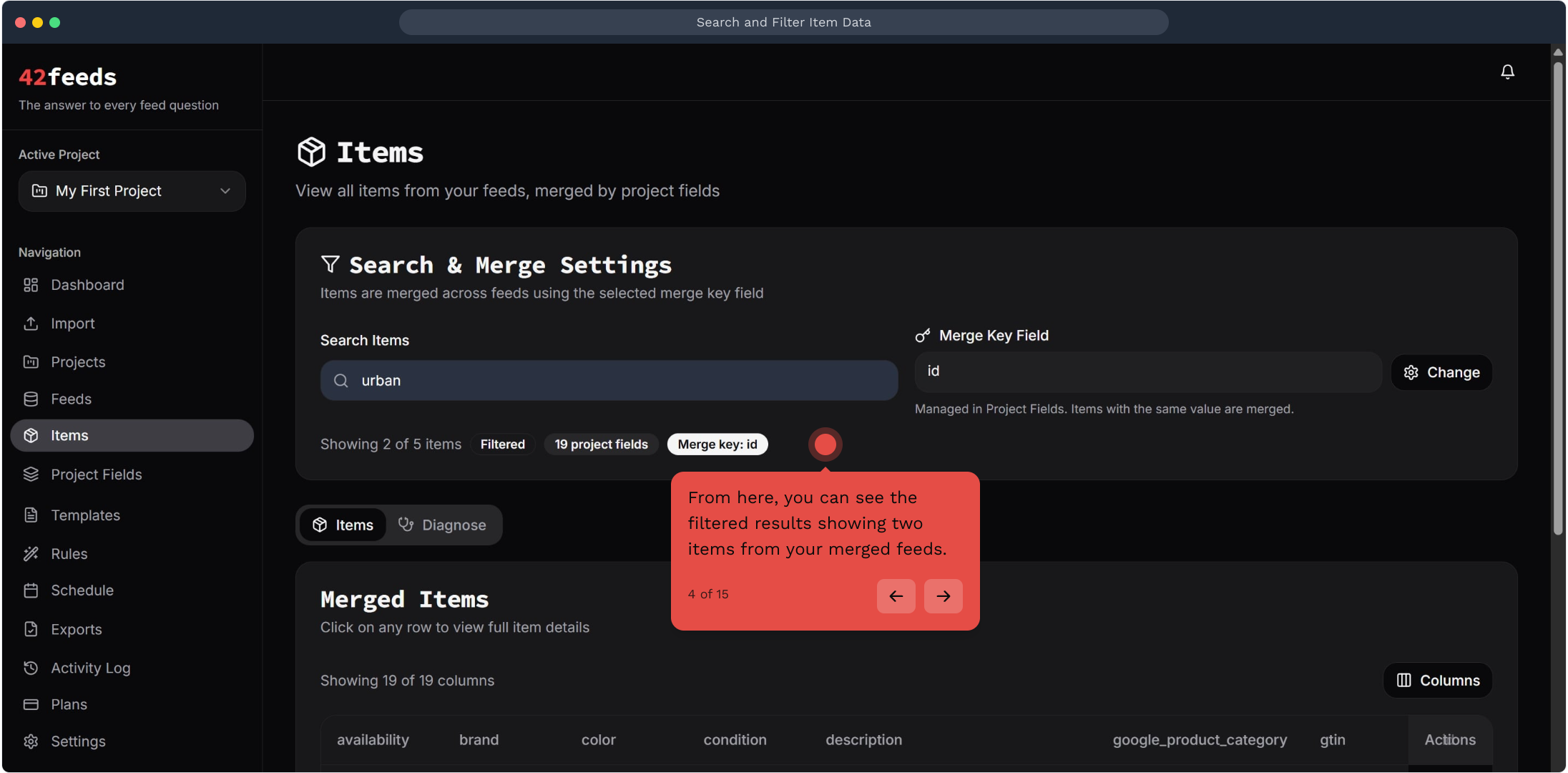
4. From here, you can see the filtered results showing items from your merged feeds
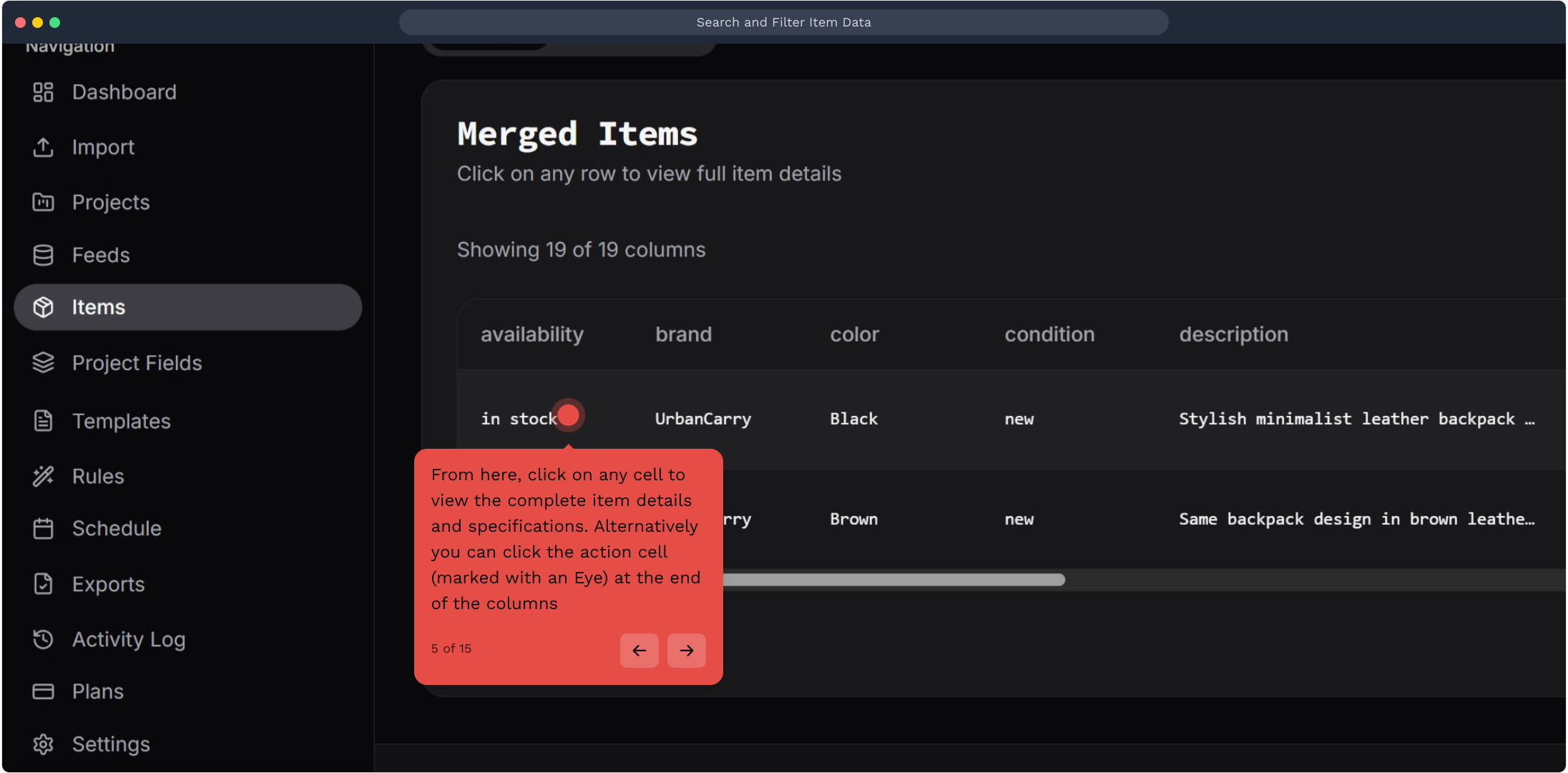
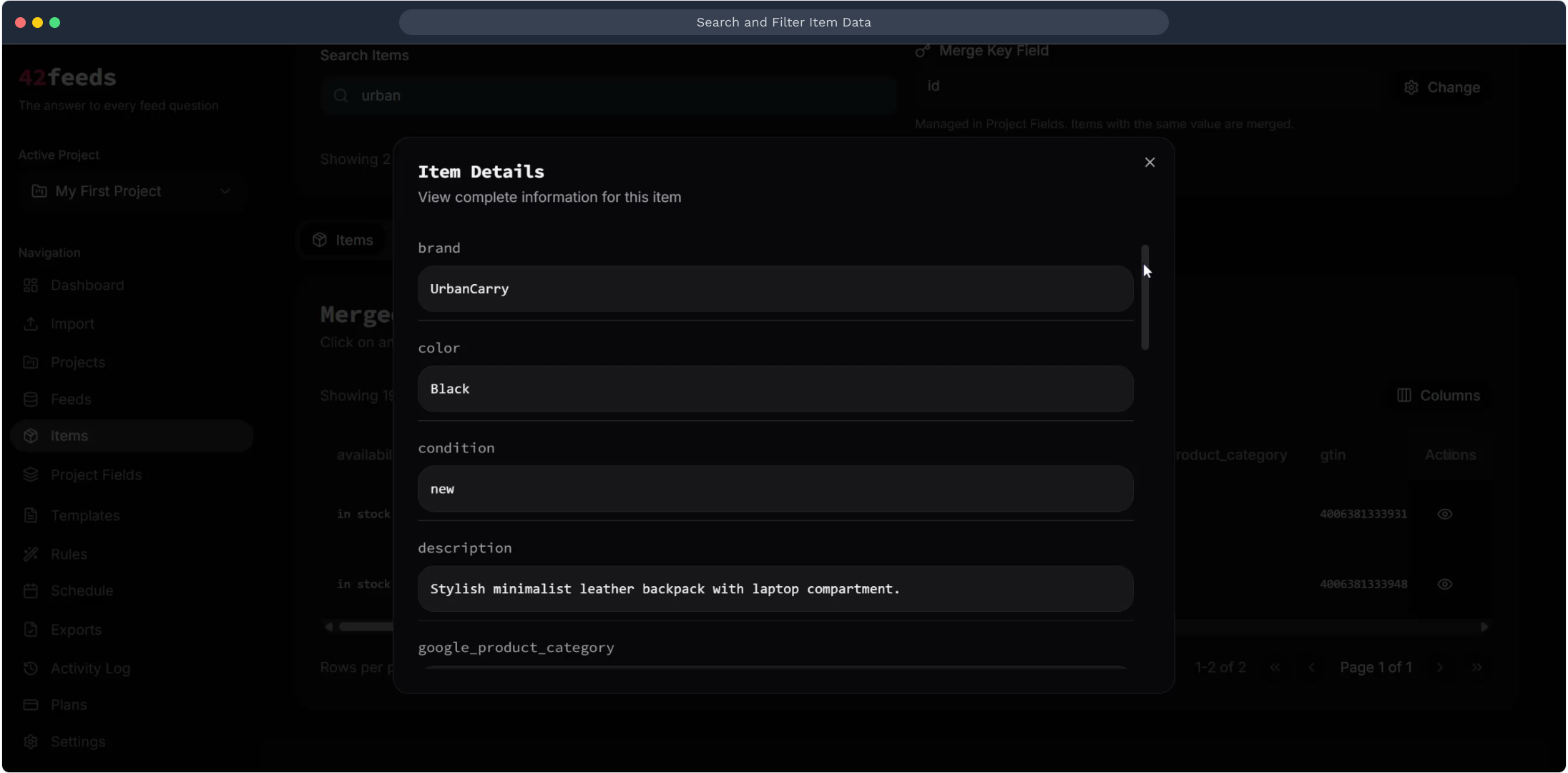
5. From here, click on any cell to view the complete item details and specifications
Alternatively you can click the action cell (marked with an Eye) at the end of the columns.
6. Video Step
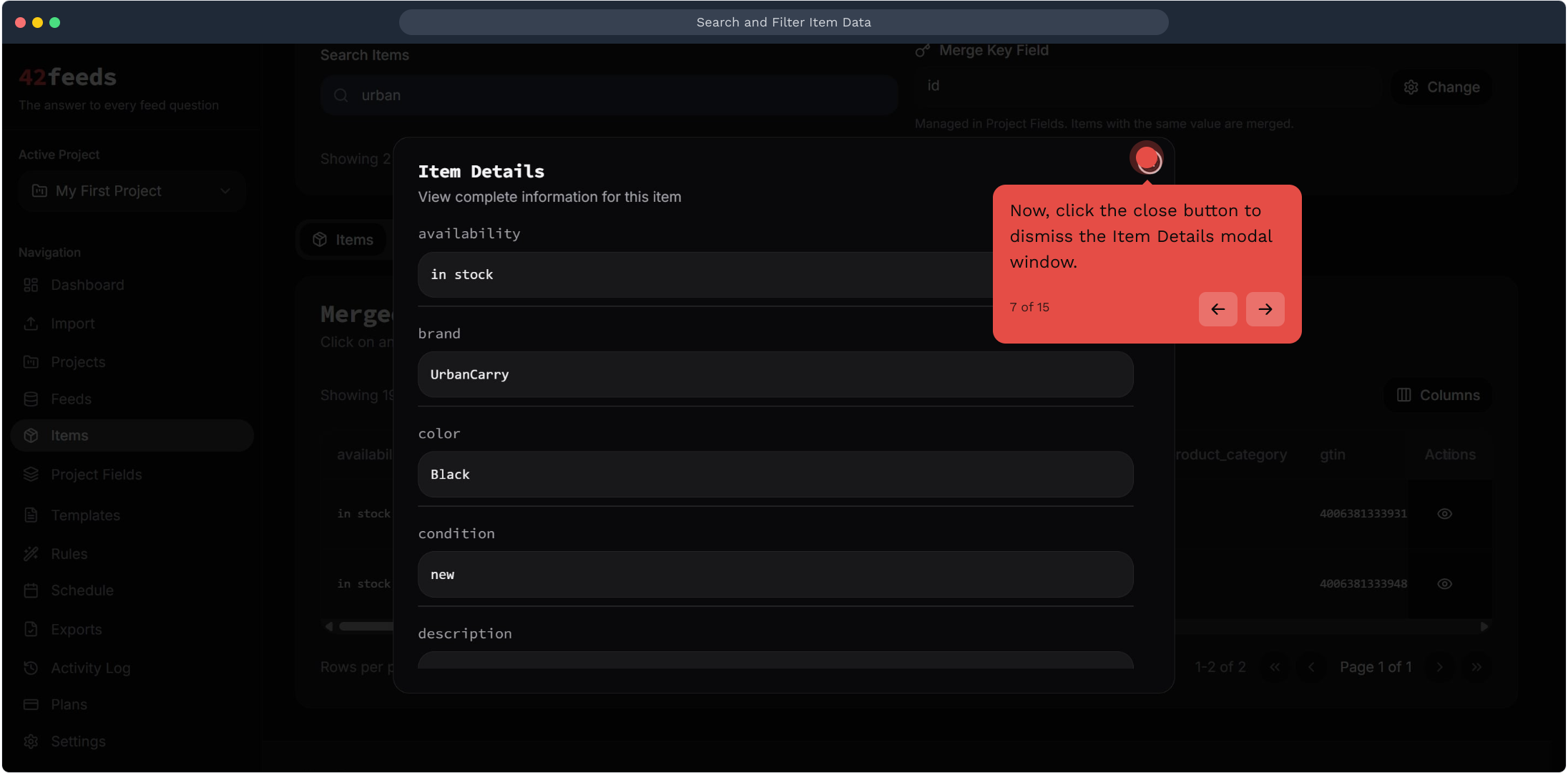
7. Now, click the close button to dismiss the Item Details modal window
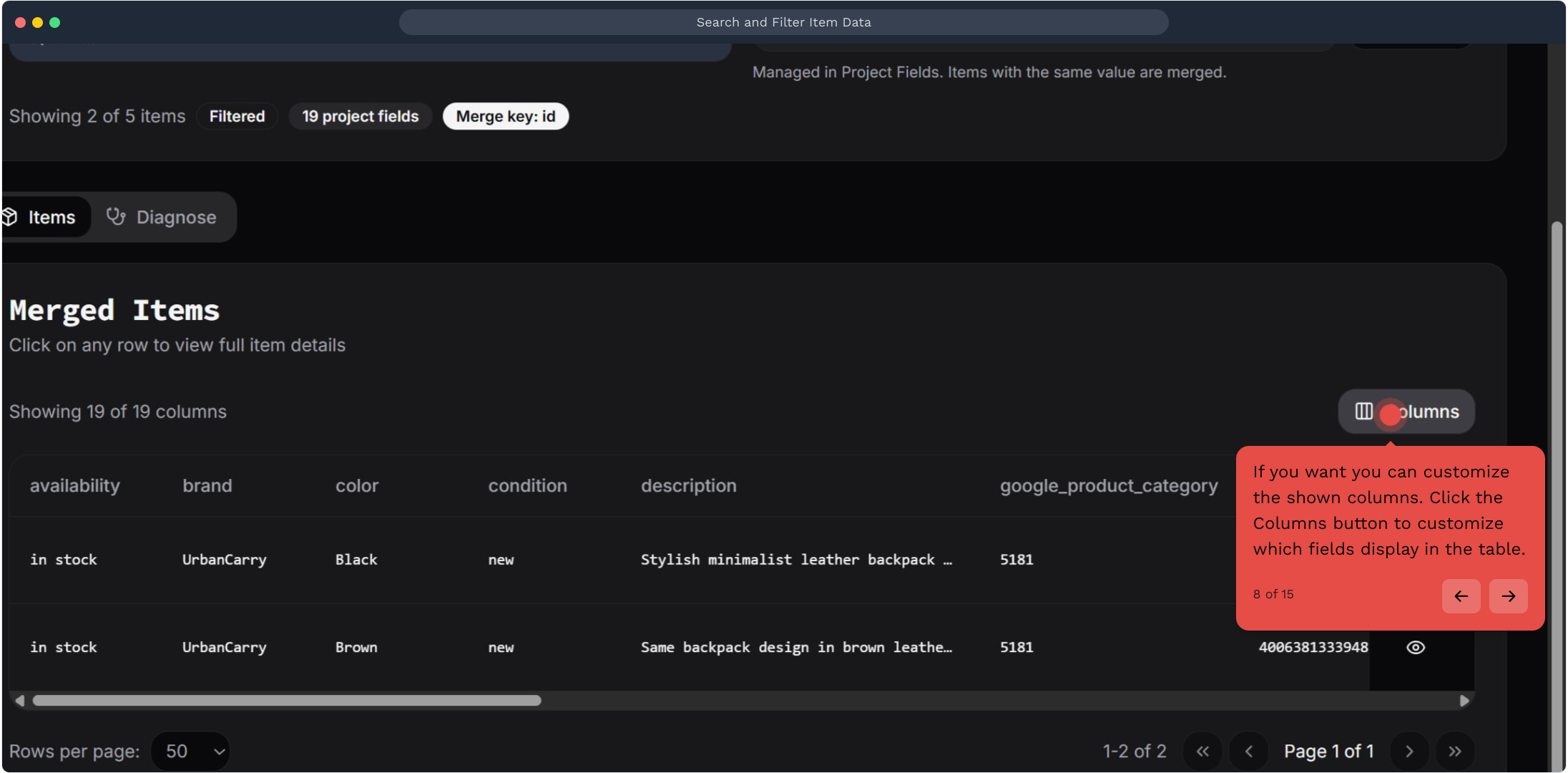
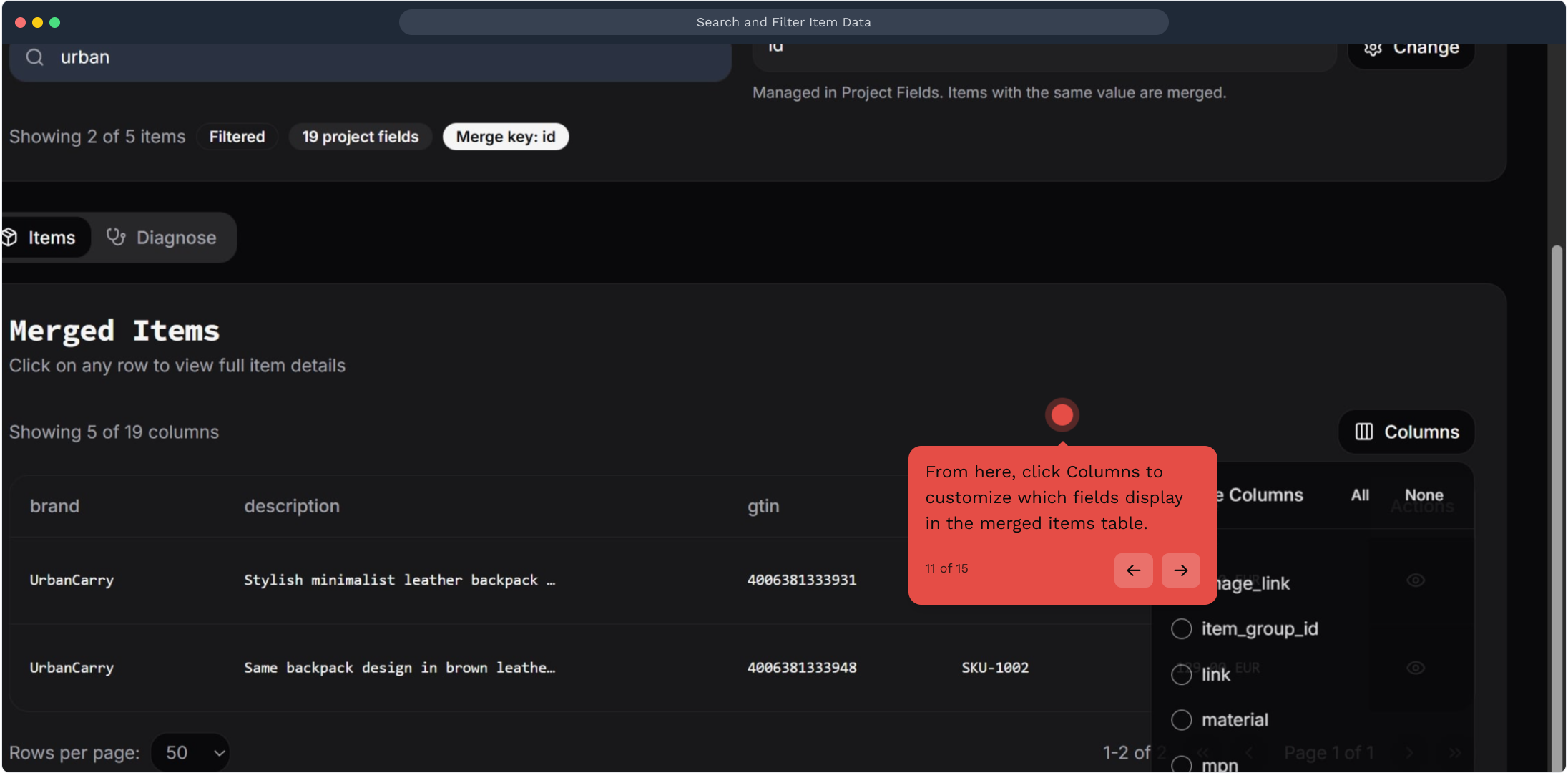
8. If you want you can customize the shown columns
Click the Columns button to customize which fields display in the table.
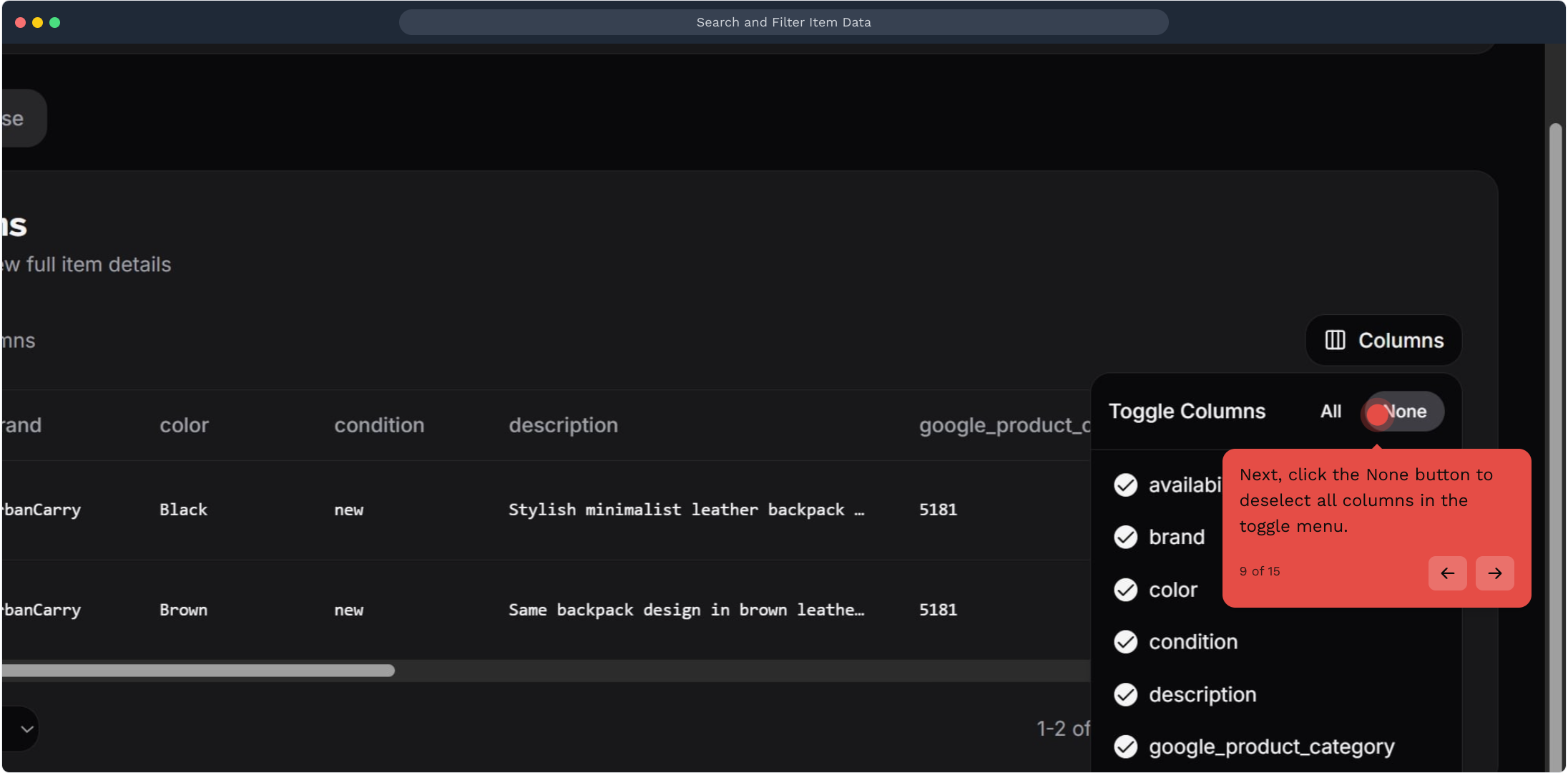
9. Next, click the None button to deselect all columns in the toggle menu
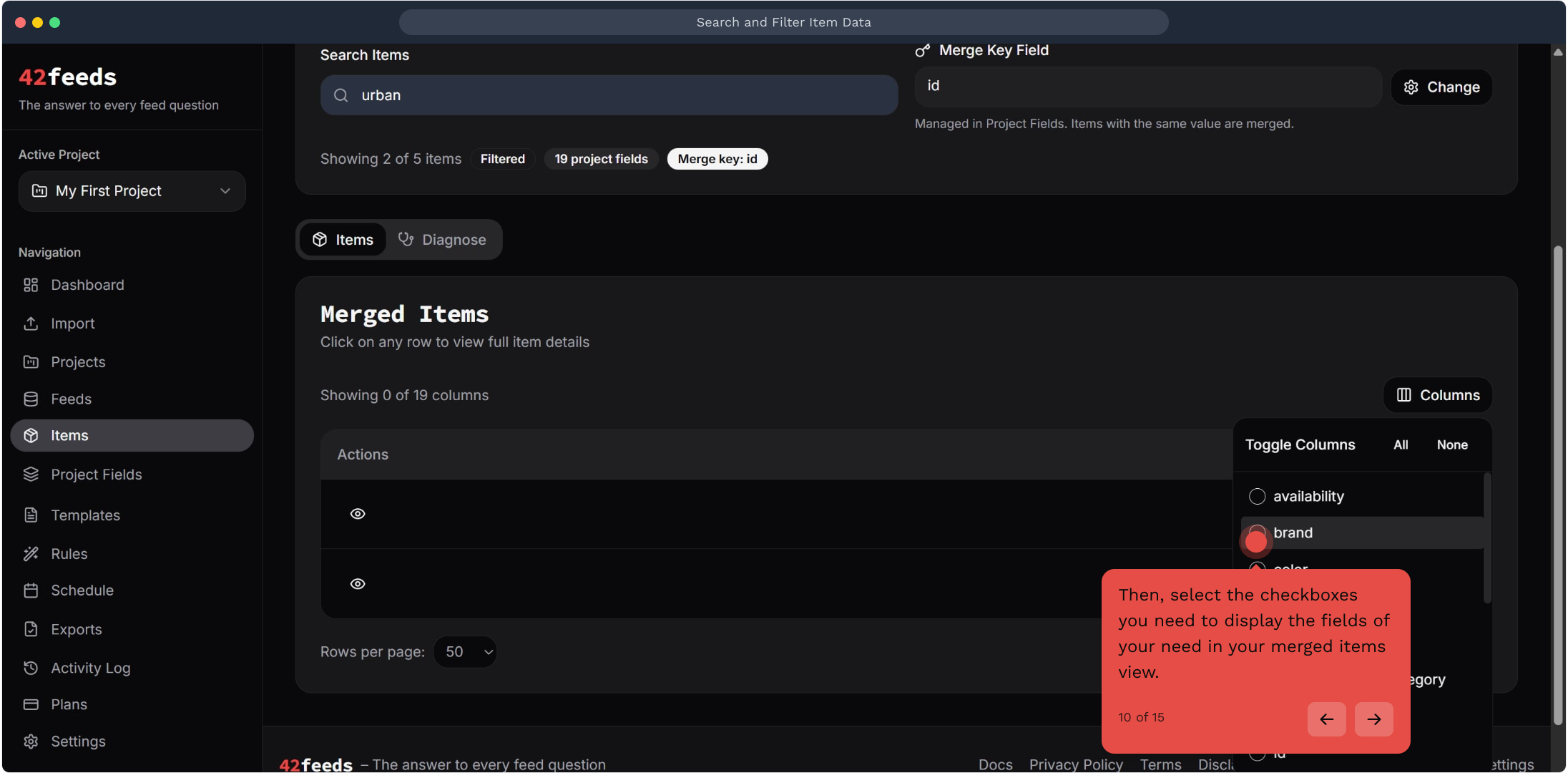
10. Then, select the checkboxes you need to display the fields of your need in your merged items view
11. From here, click Columns to customize which fields display in the merged items table
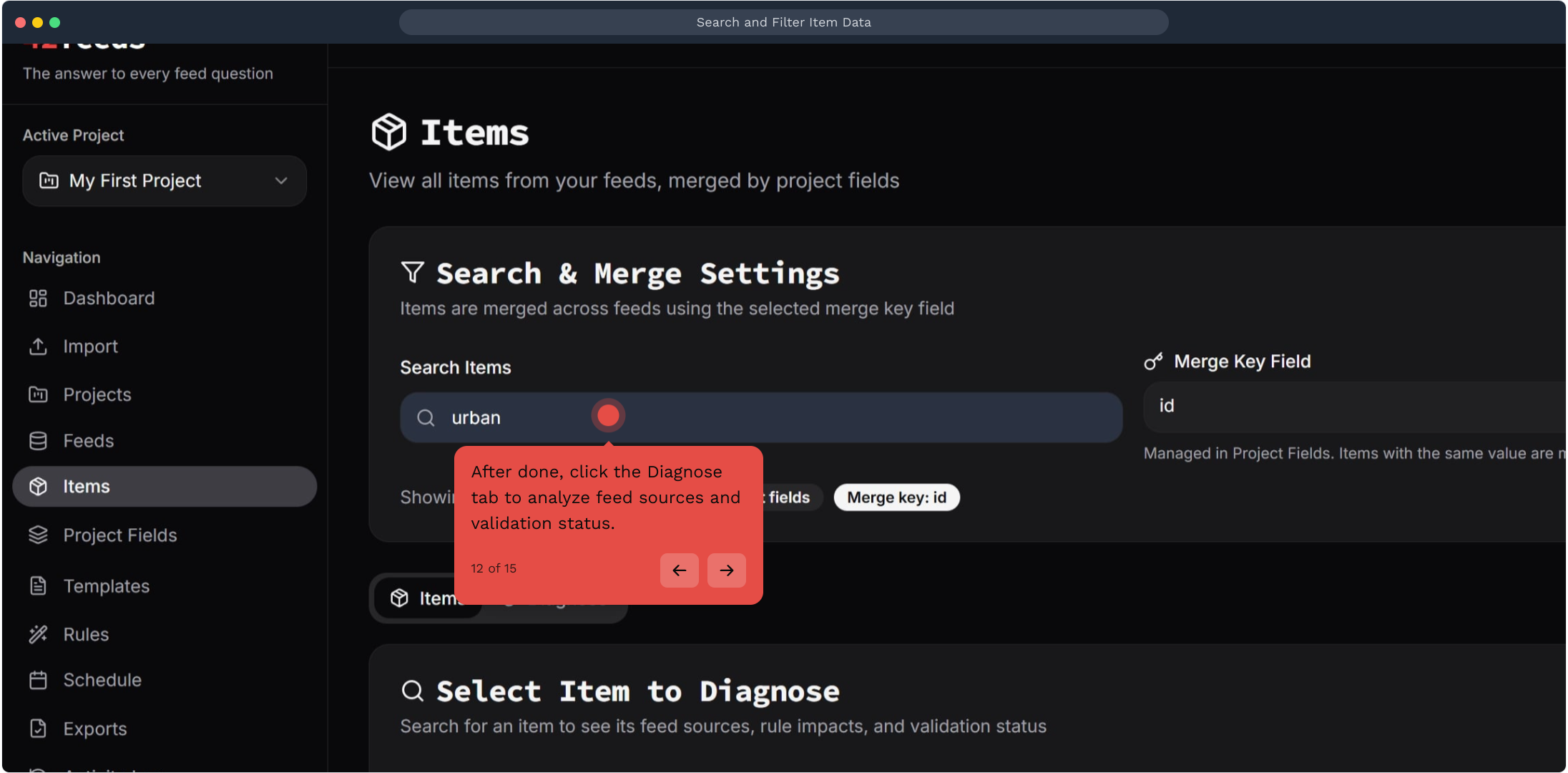
12. After done, click the Diagnose tab to analyze feed sources and validation status
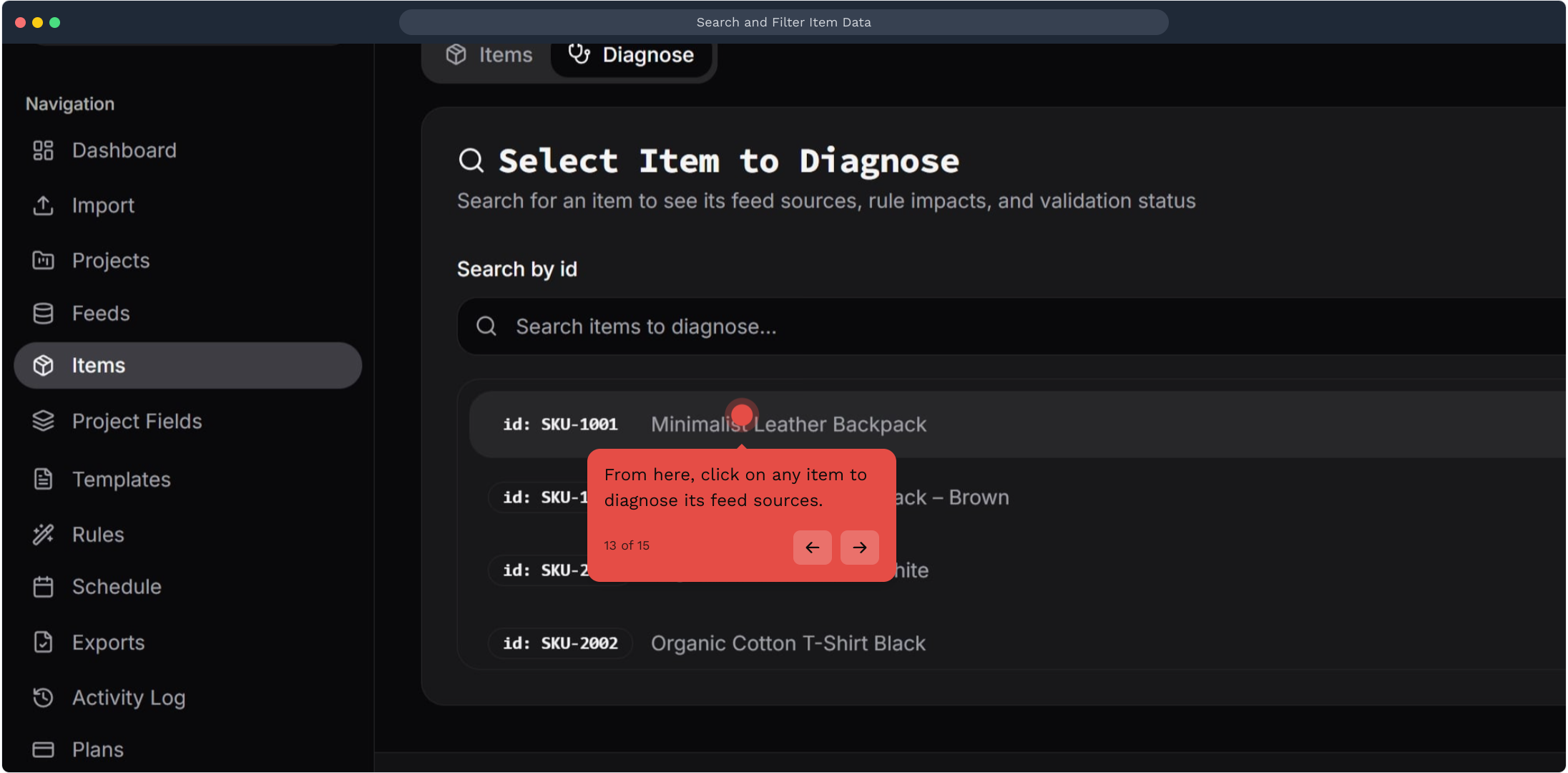
13. From here, click on any item to diagnose its feed sources
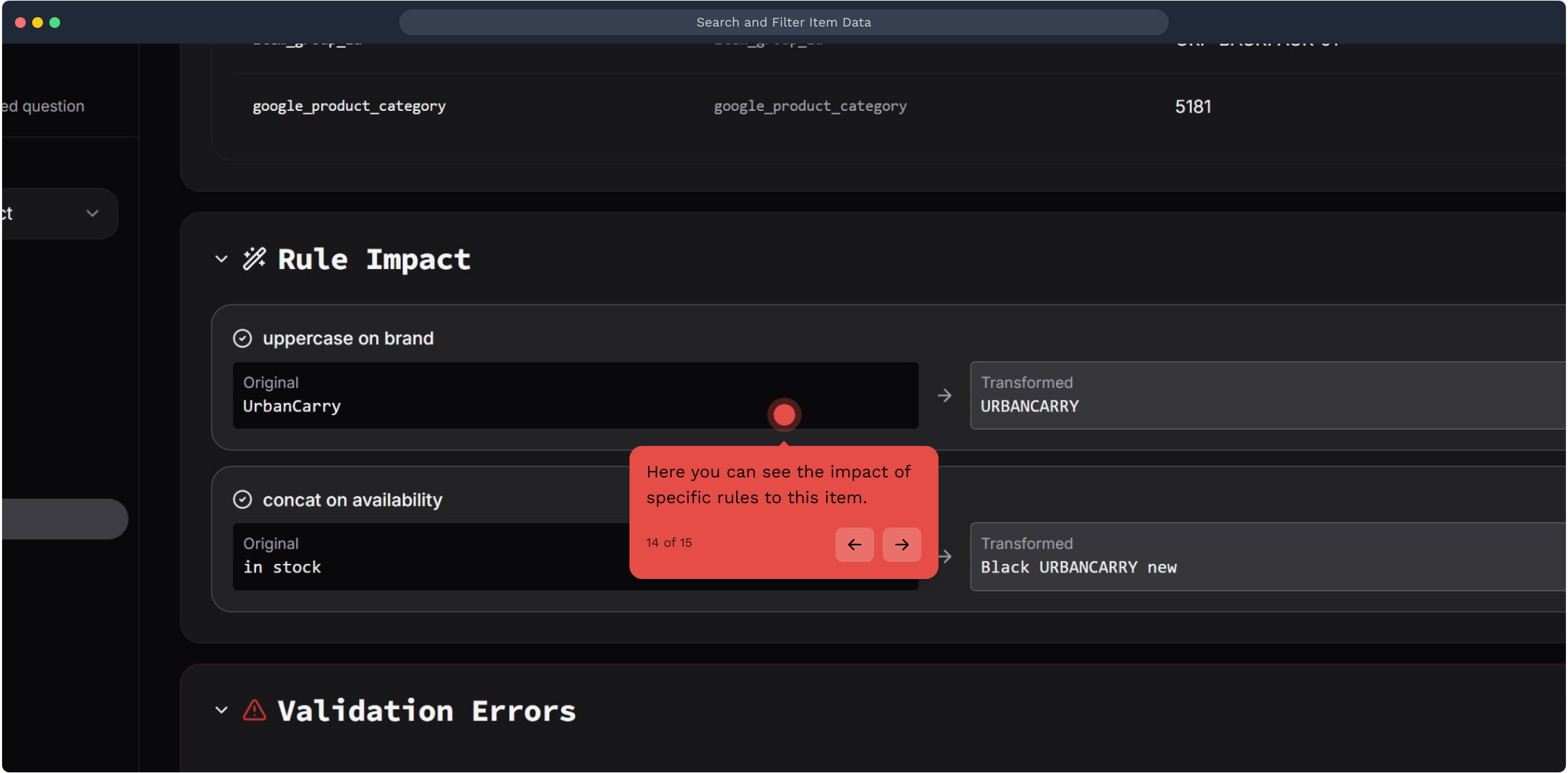
14. Here you can see the impact of specific rules to this item
This workflow was created with Supademo.