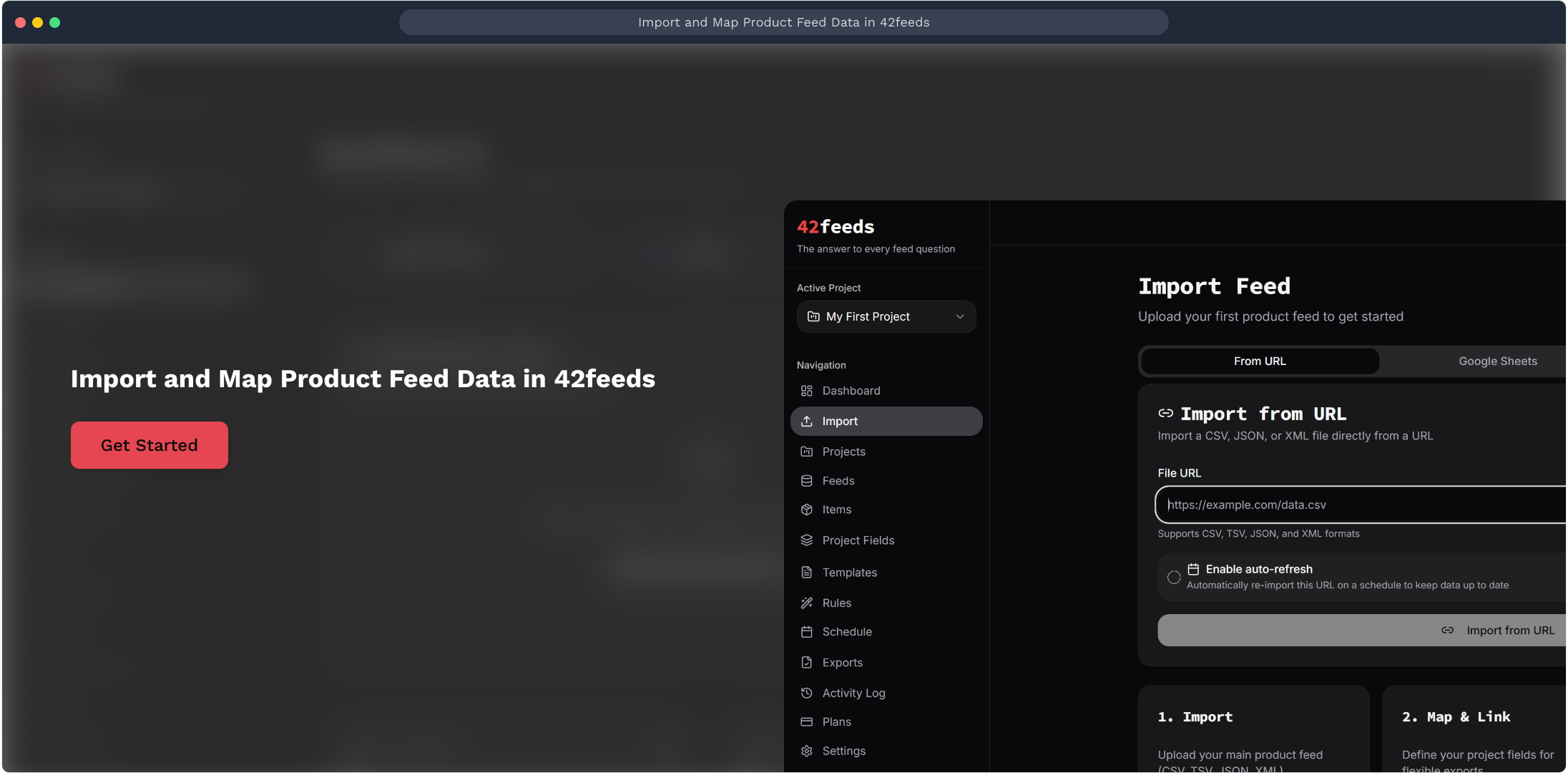
Import and Map Product Feed Data in 42feeds
Author: Hello 42feeds Steps: 8 Source: Supademo
Interactive Demo
Try this tutorial directly in your browser:
1. Import and Map Product Feed Data in 42feeds
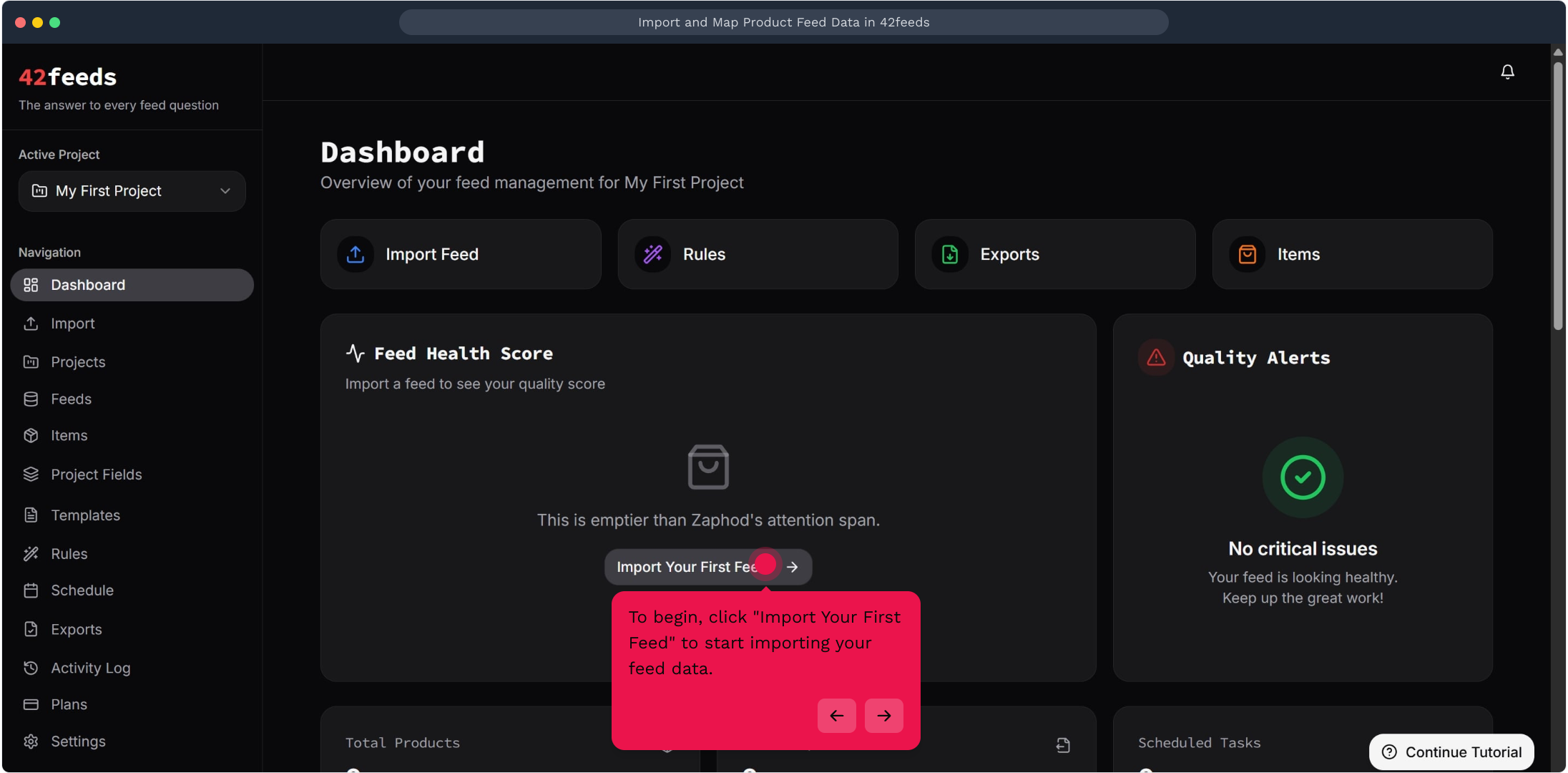
2. To begin, click "Import Your First Feed" to start importing your feed data
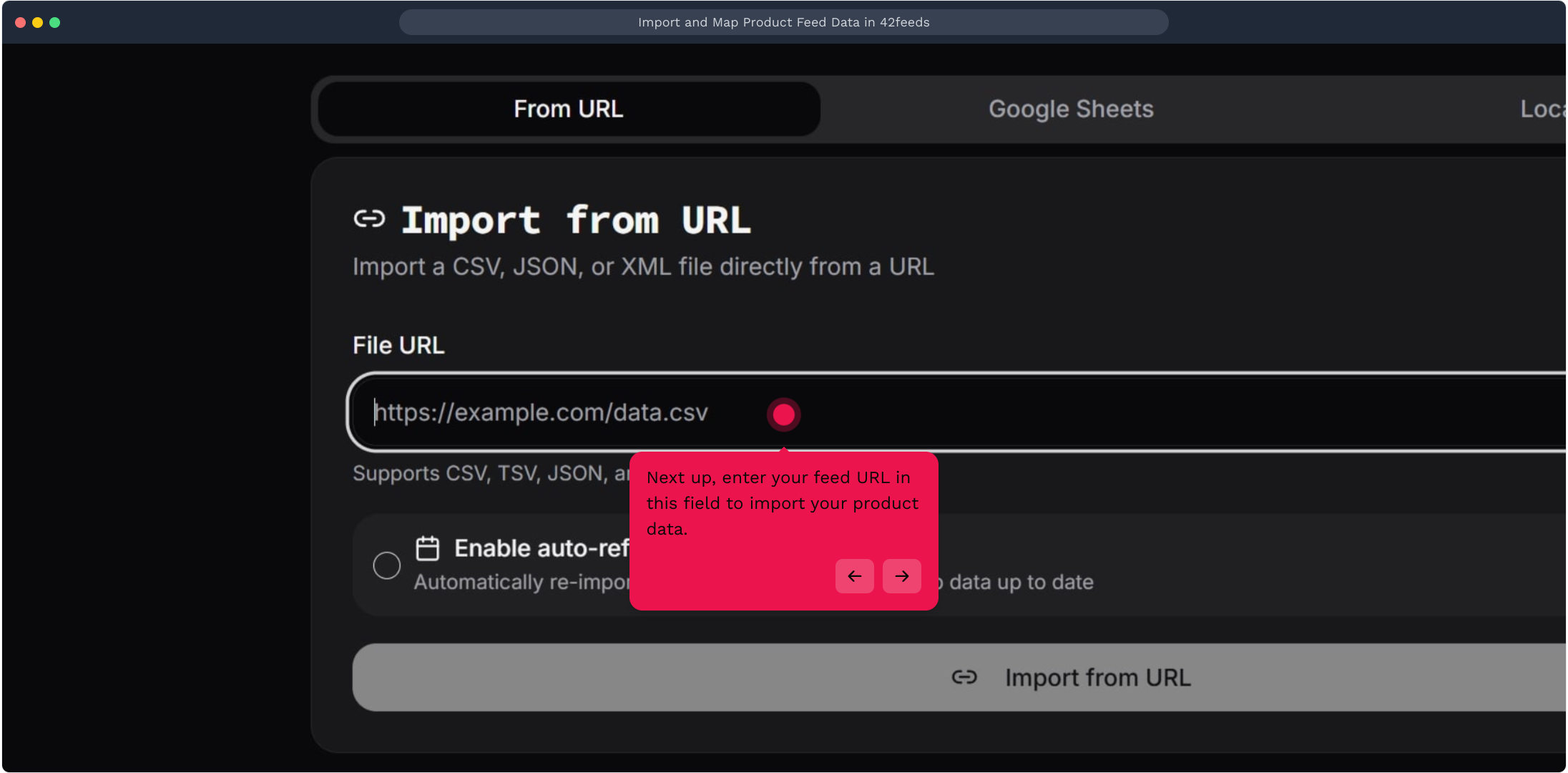
3. Next up, enter your feed URL in this field to import your product data
4. Video Step
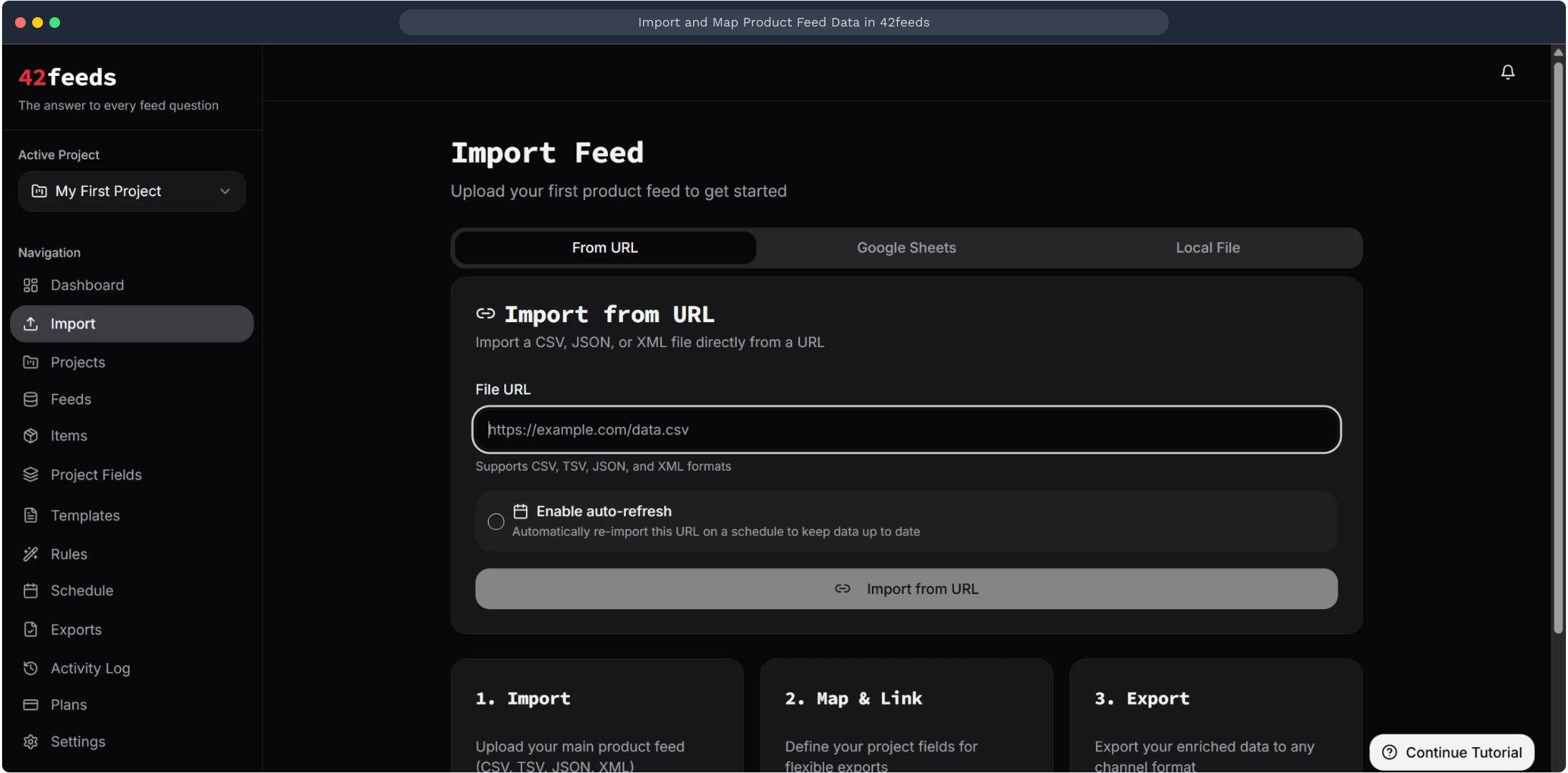
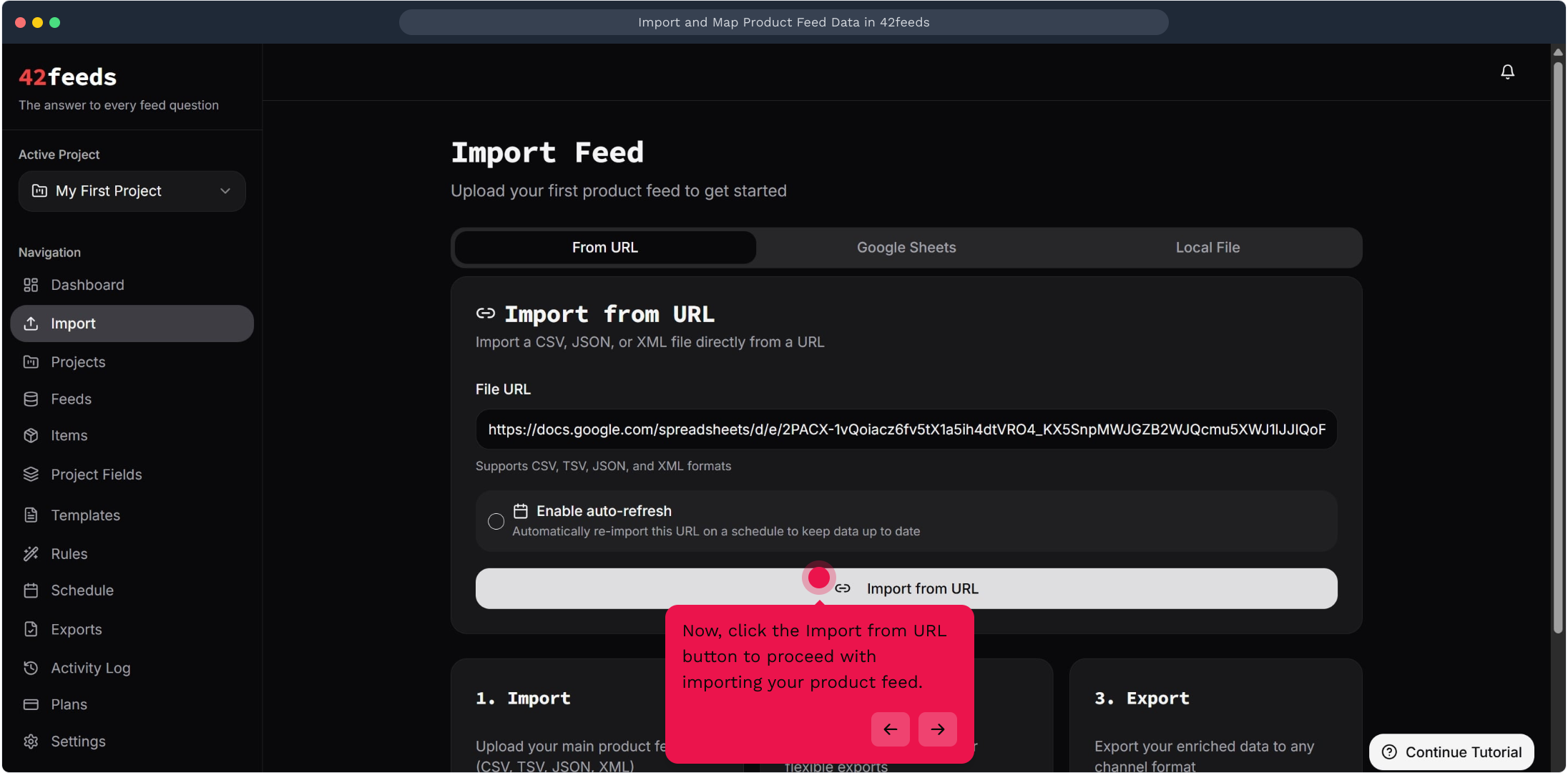
5. Now, click the Import from URL button to proceed with importing your product feed
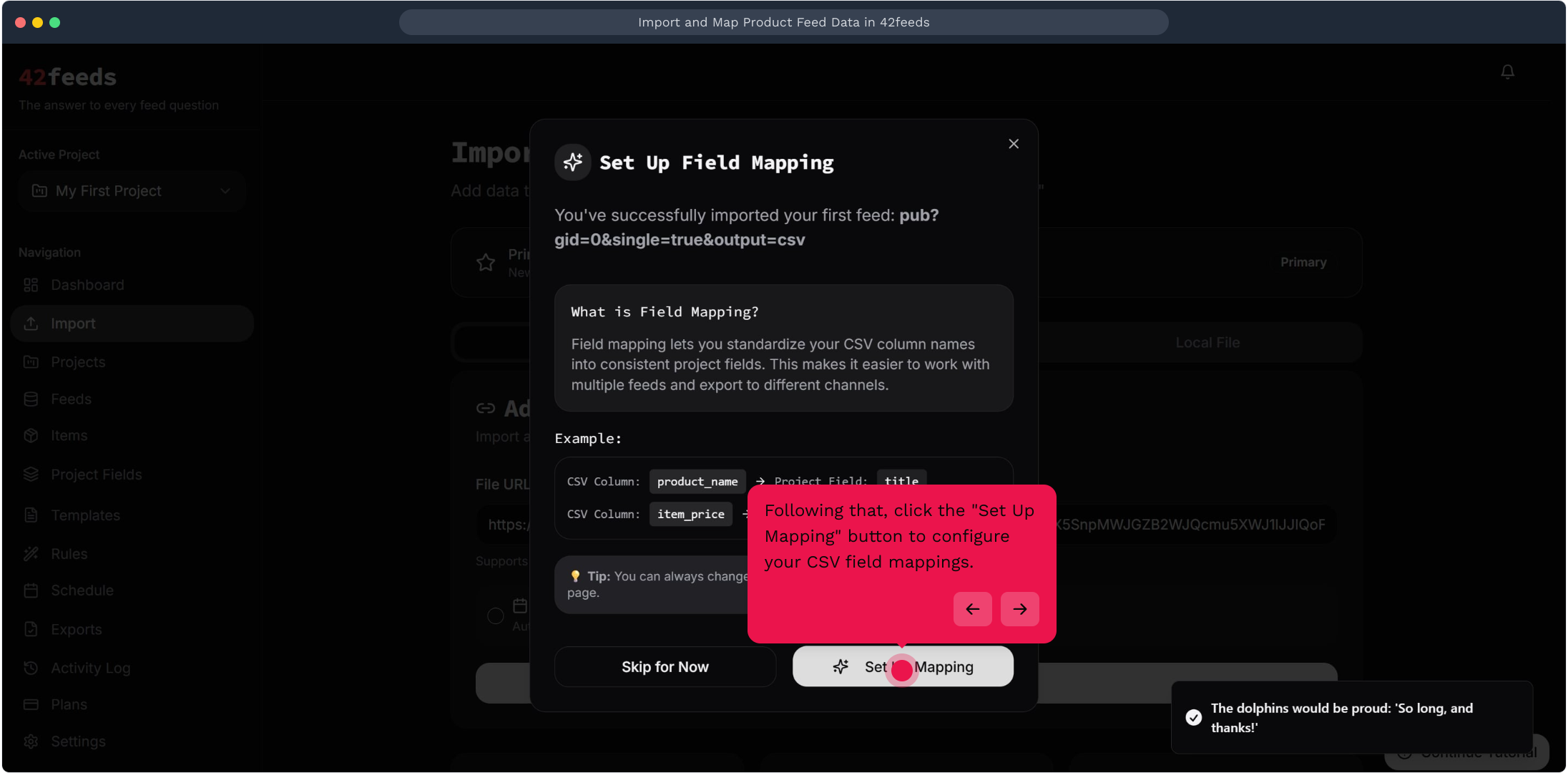
6. Following that, click the "Set Up Mapping" button to configure your CSV field mappings
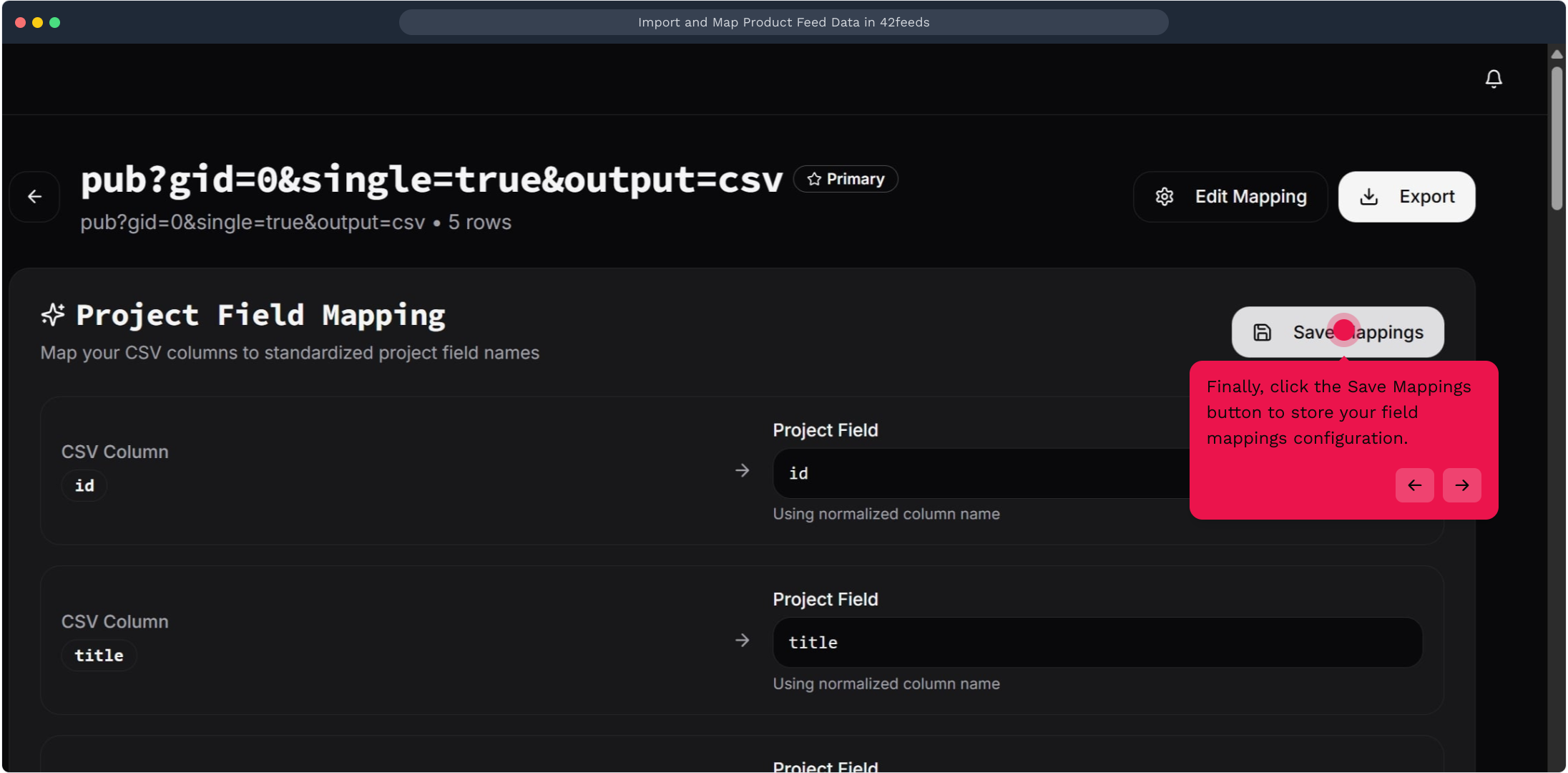
7. Finally, click the Save Mappings button to store your field mappings configuration
This workflow was created with Supademo.