Create and export Google Shopping feeds on 42feeds
Author: Hello 42feeds Steps: 17 Source: Supademo
Interactive Demo
Try this tutorial directly in your browser:
1. Create and Export Google Shopping Feeds on 42feeds
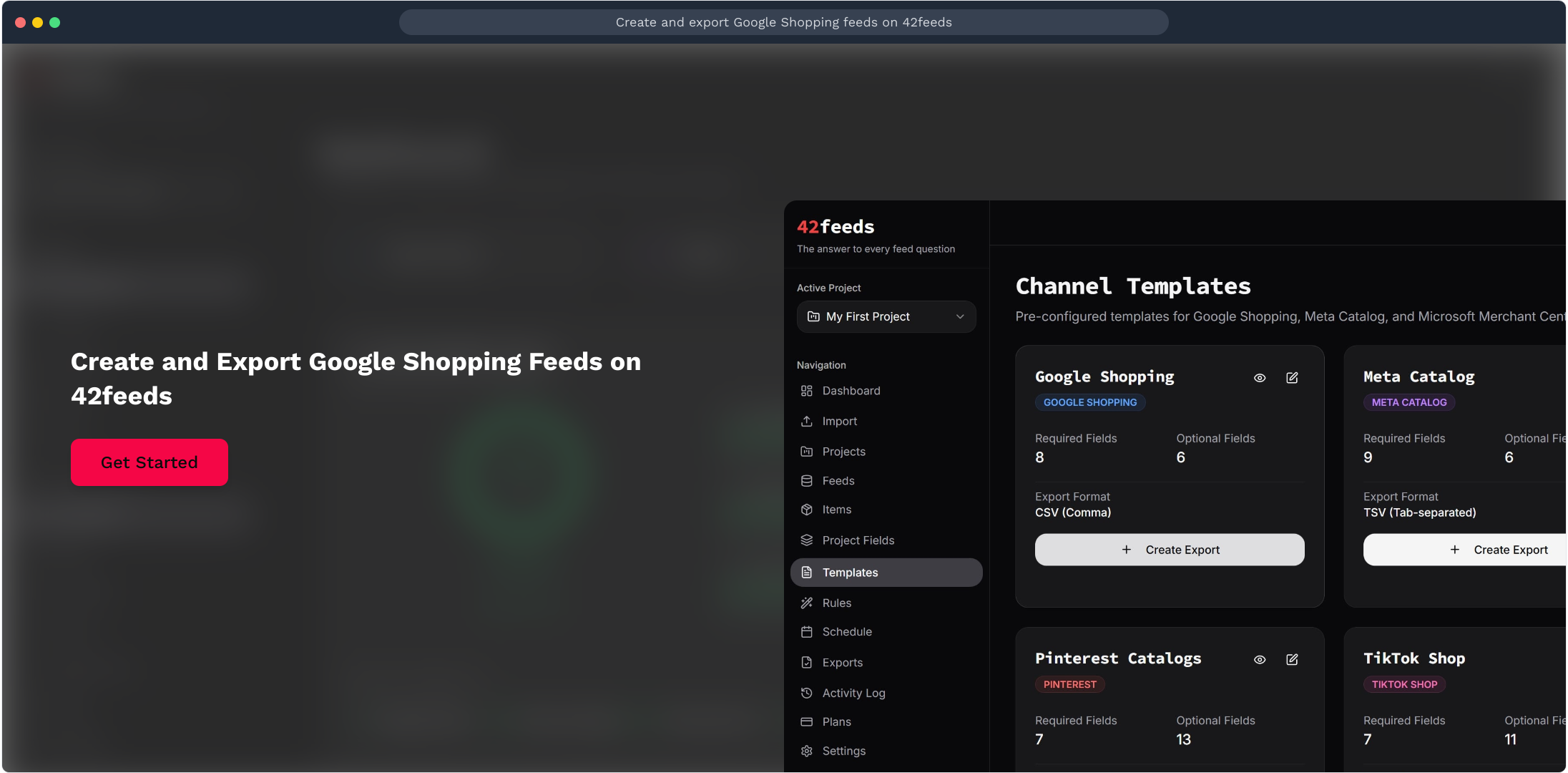
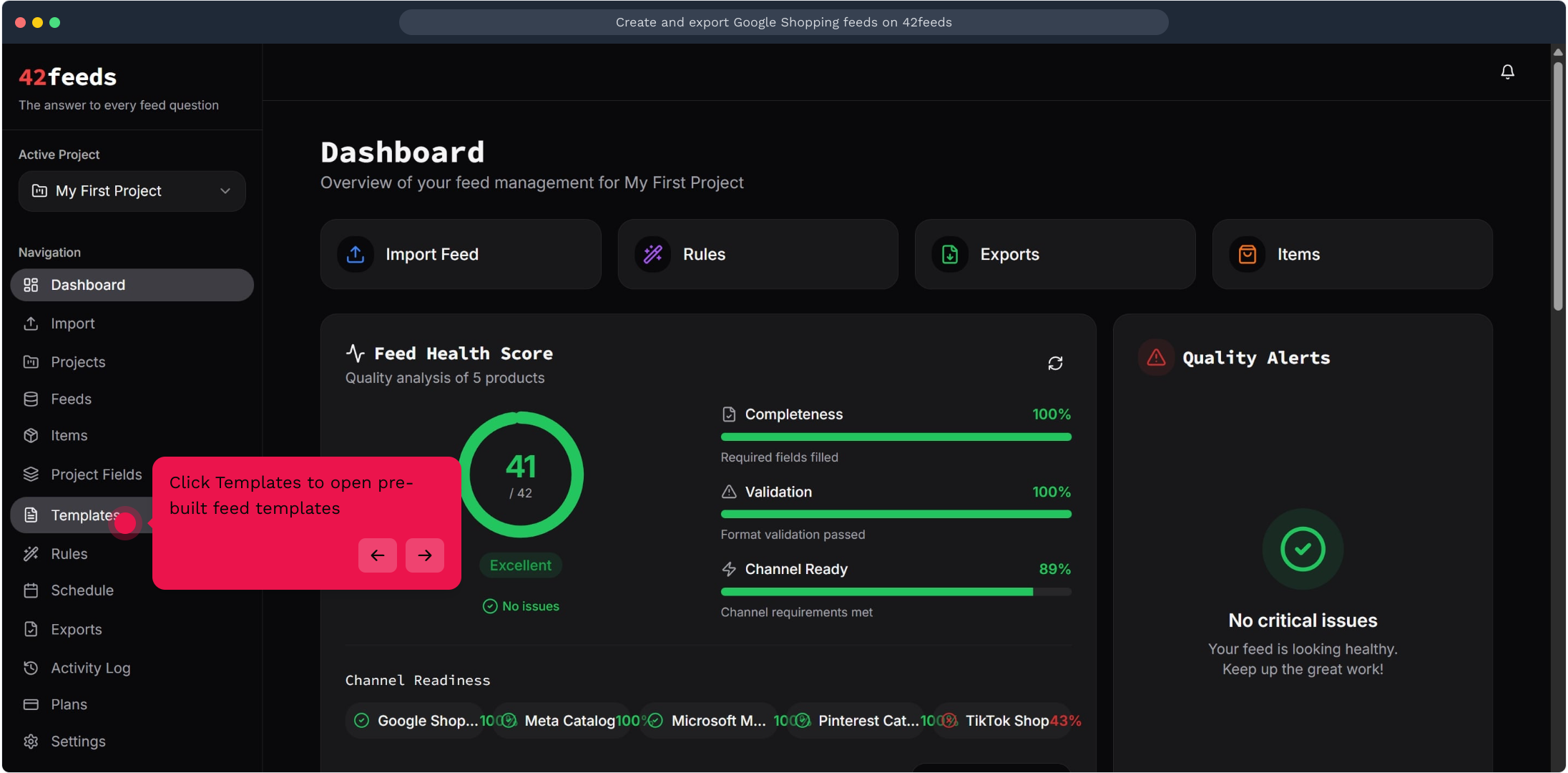
2. Click Templates to open pre-built feed templates
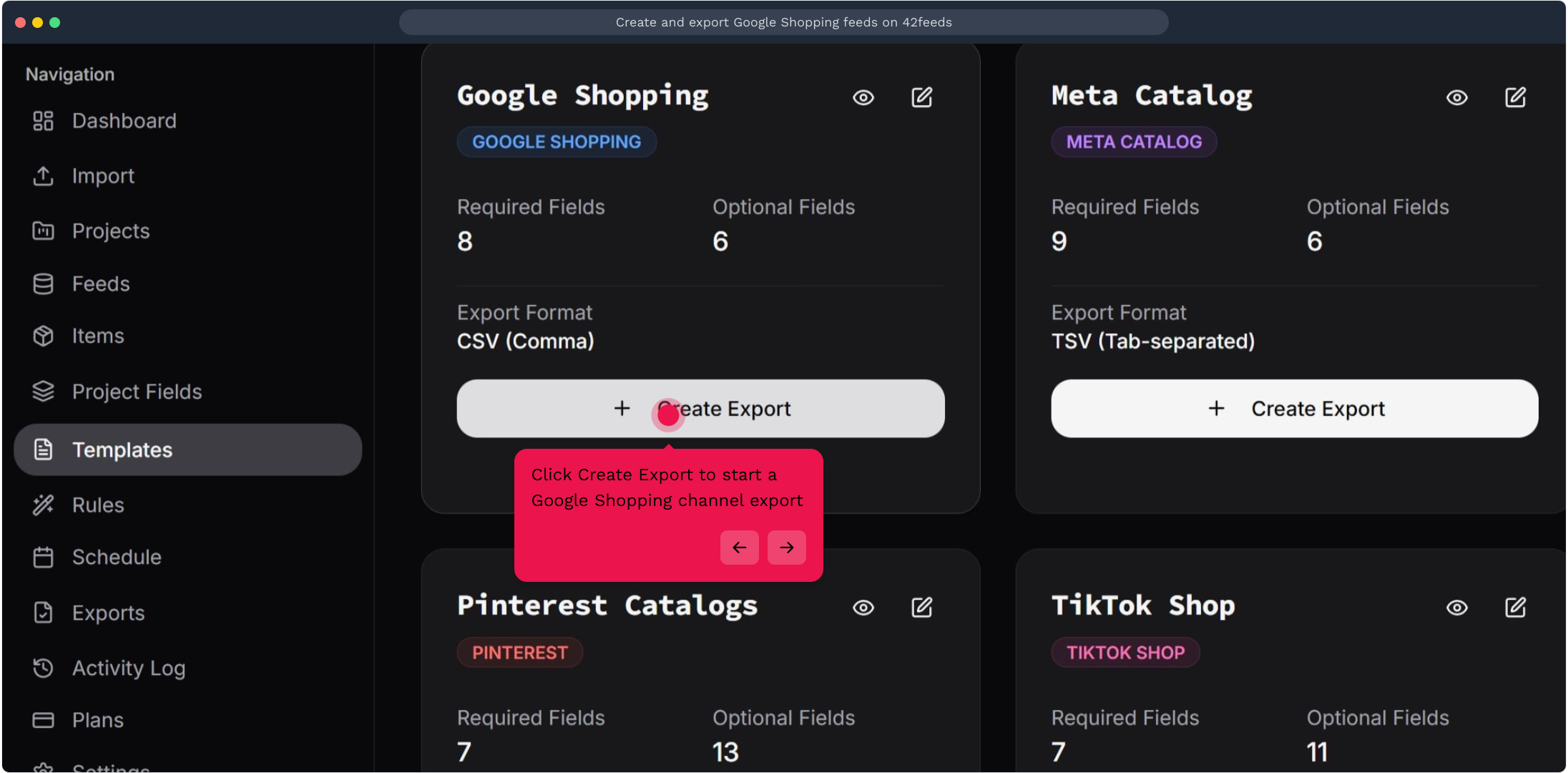
3. Click Create Export to start a Google Shopping channel export
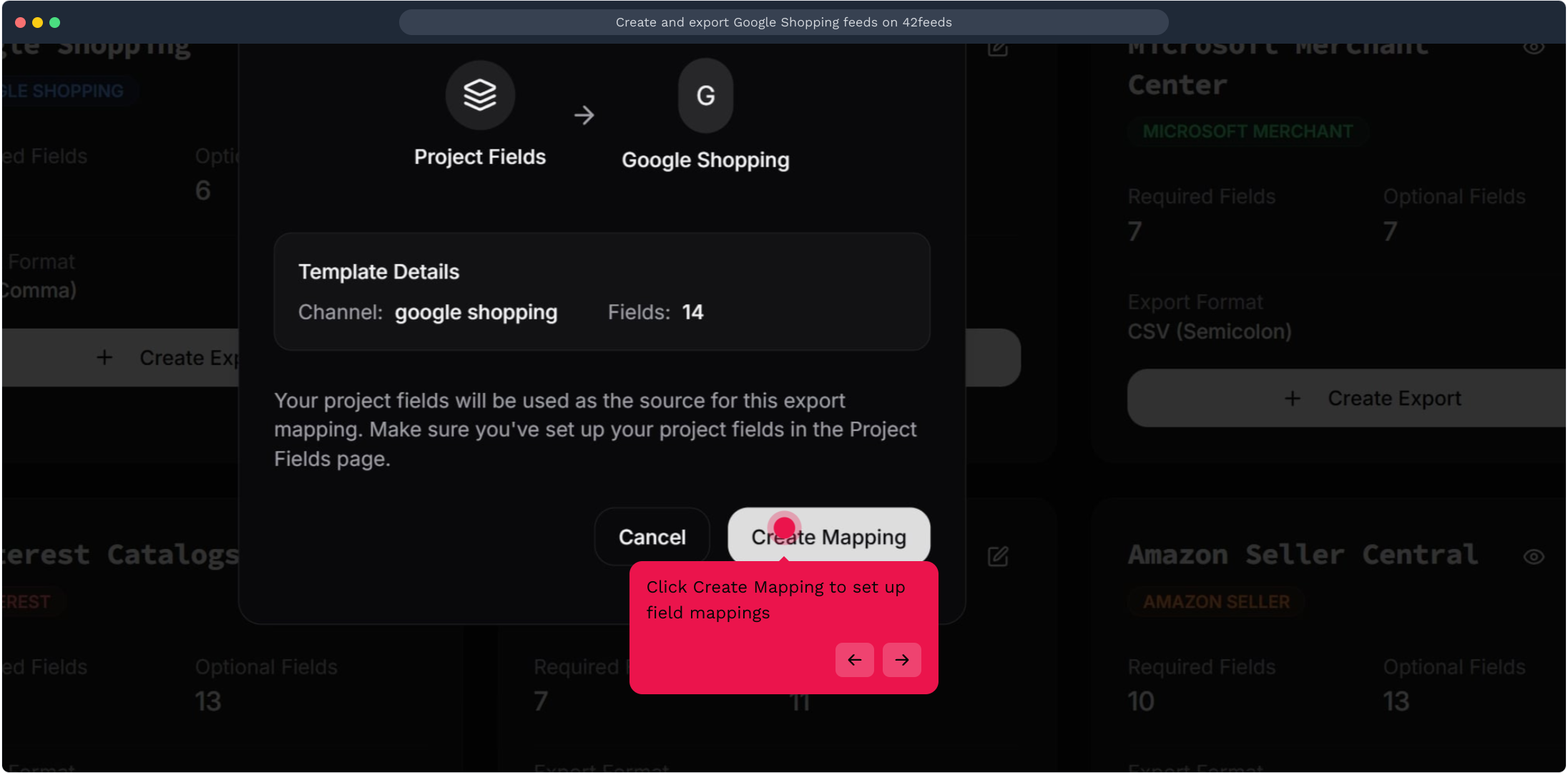
4. Click Create Mapping to set up field mappings
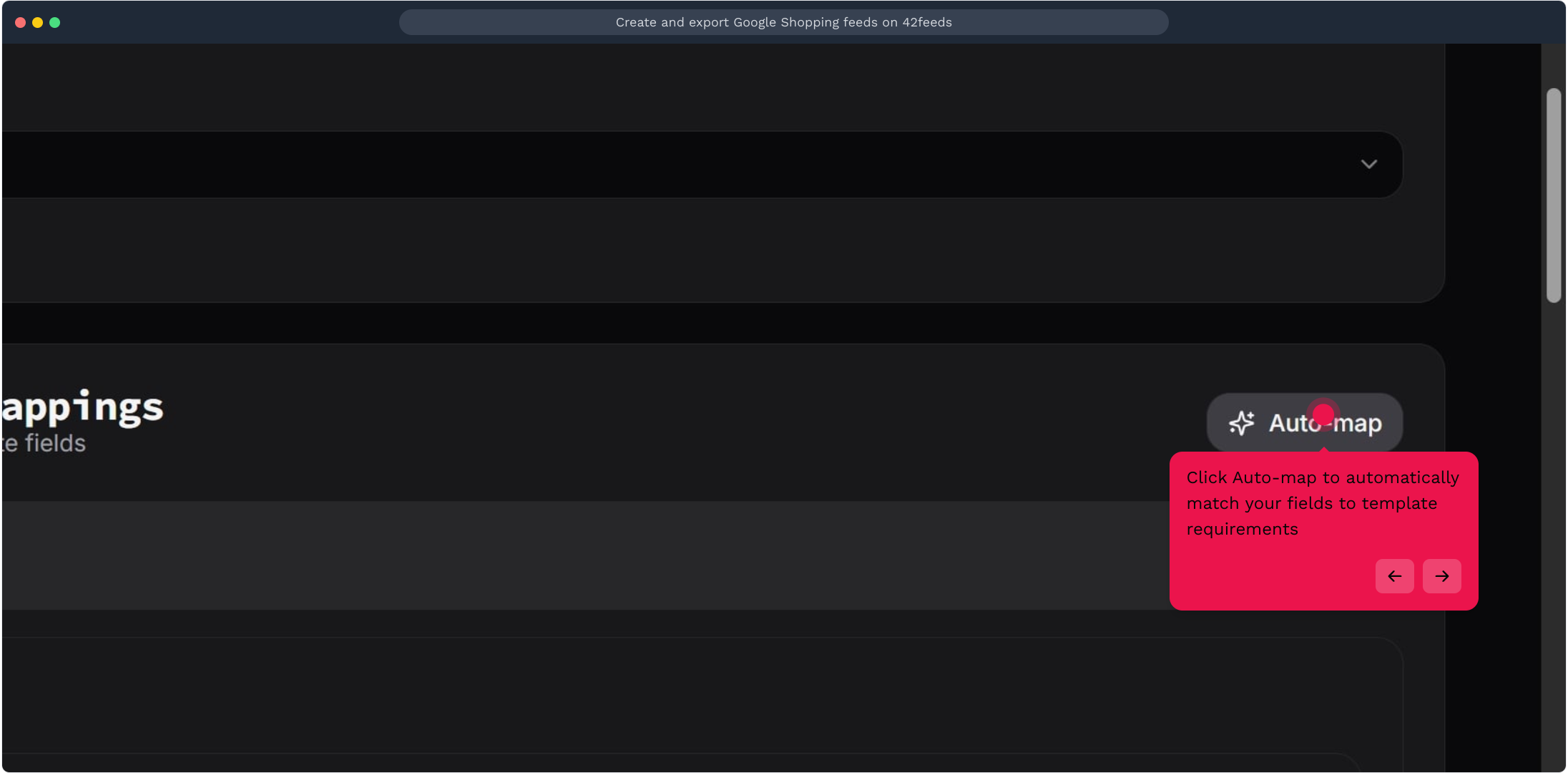
5. Click Auto-map to automatically match your fields to template requirements
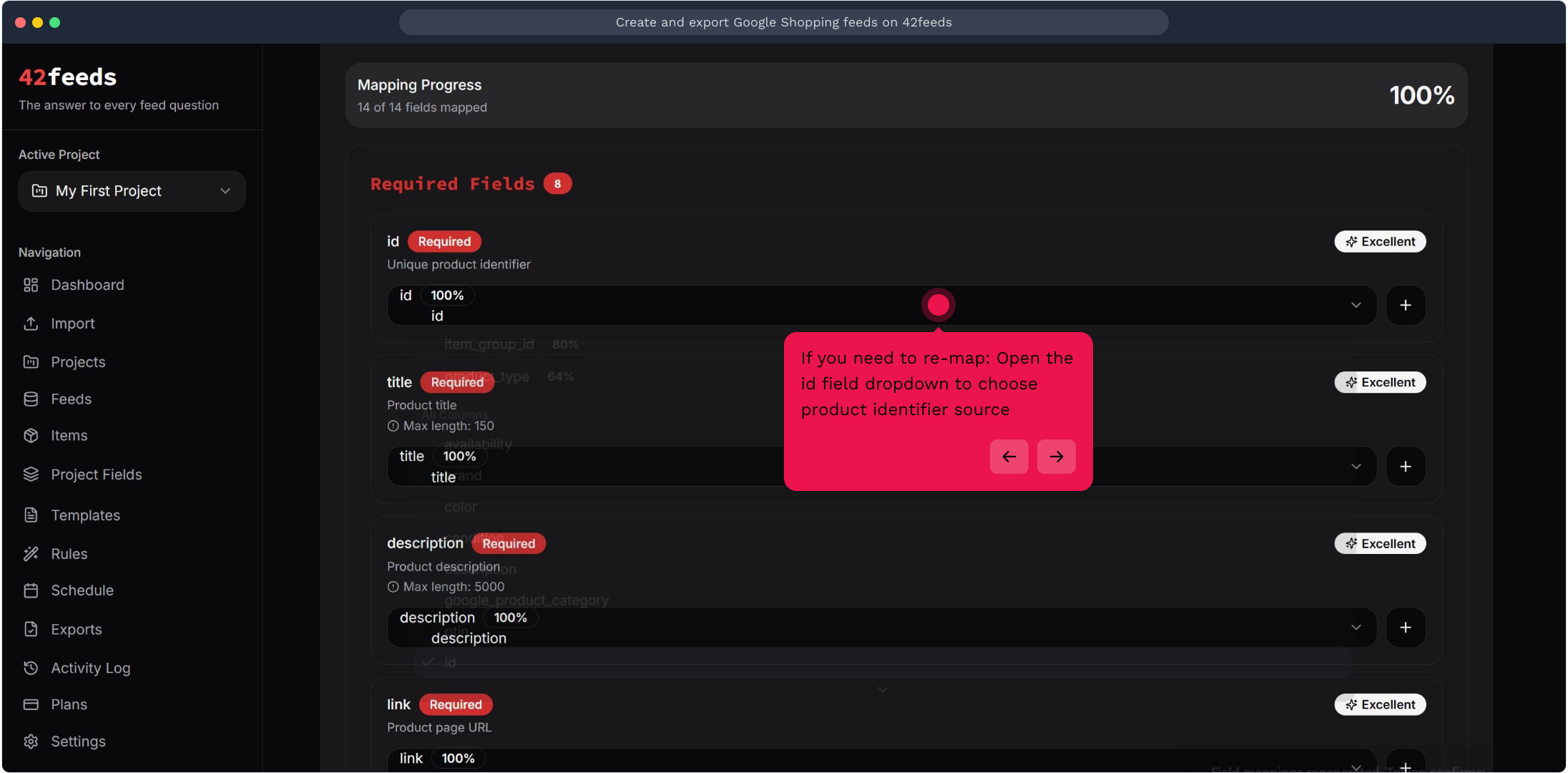
6. If you need to re-map: Open the id field dropdown to choose product identifier source
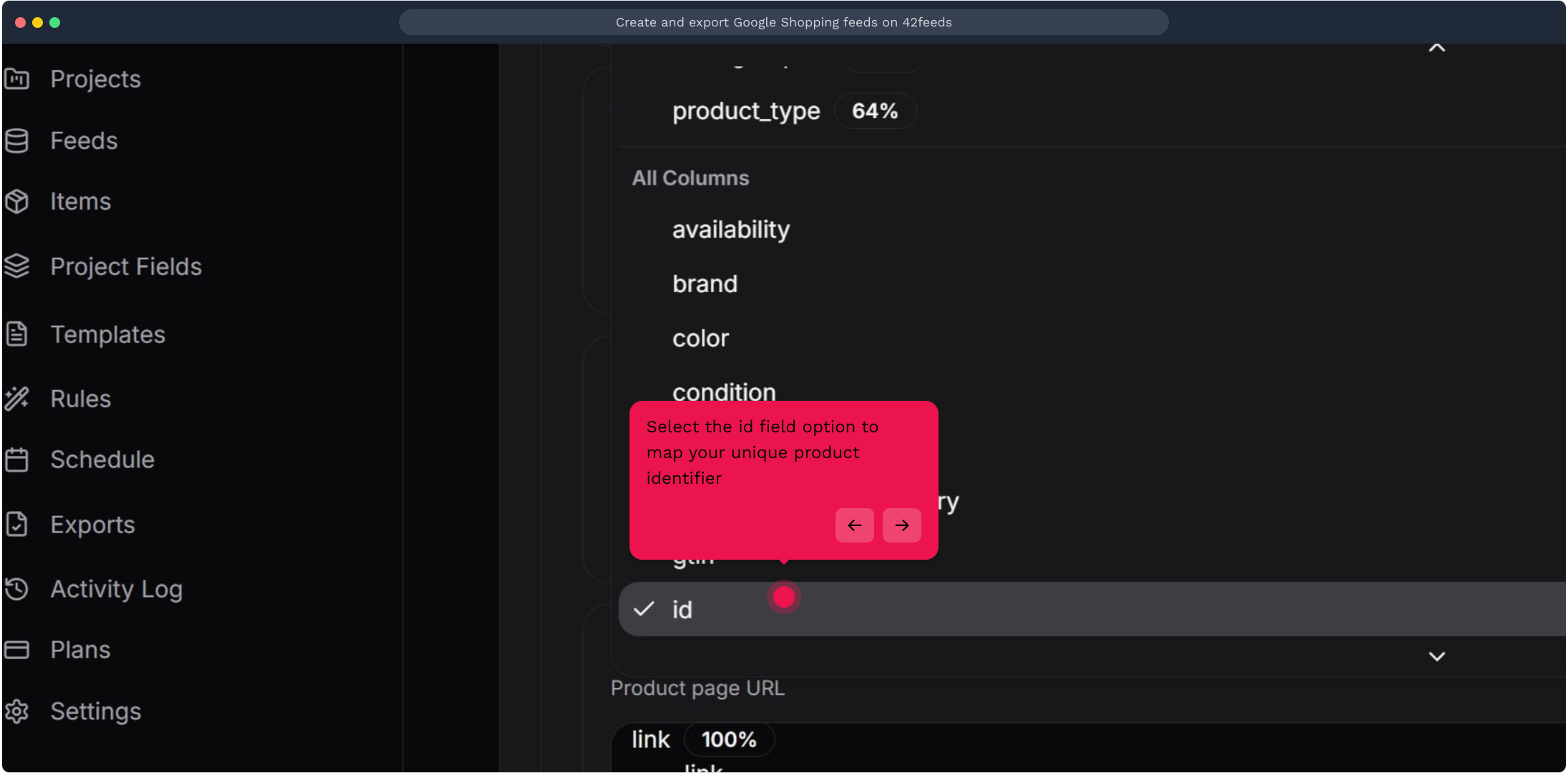
7. Select the id field option to map your unique product identifier
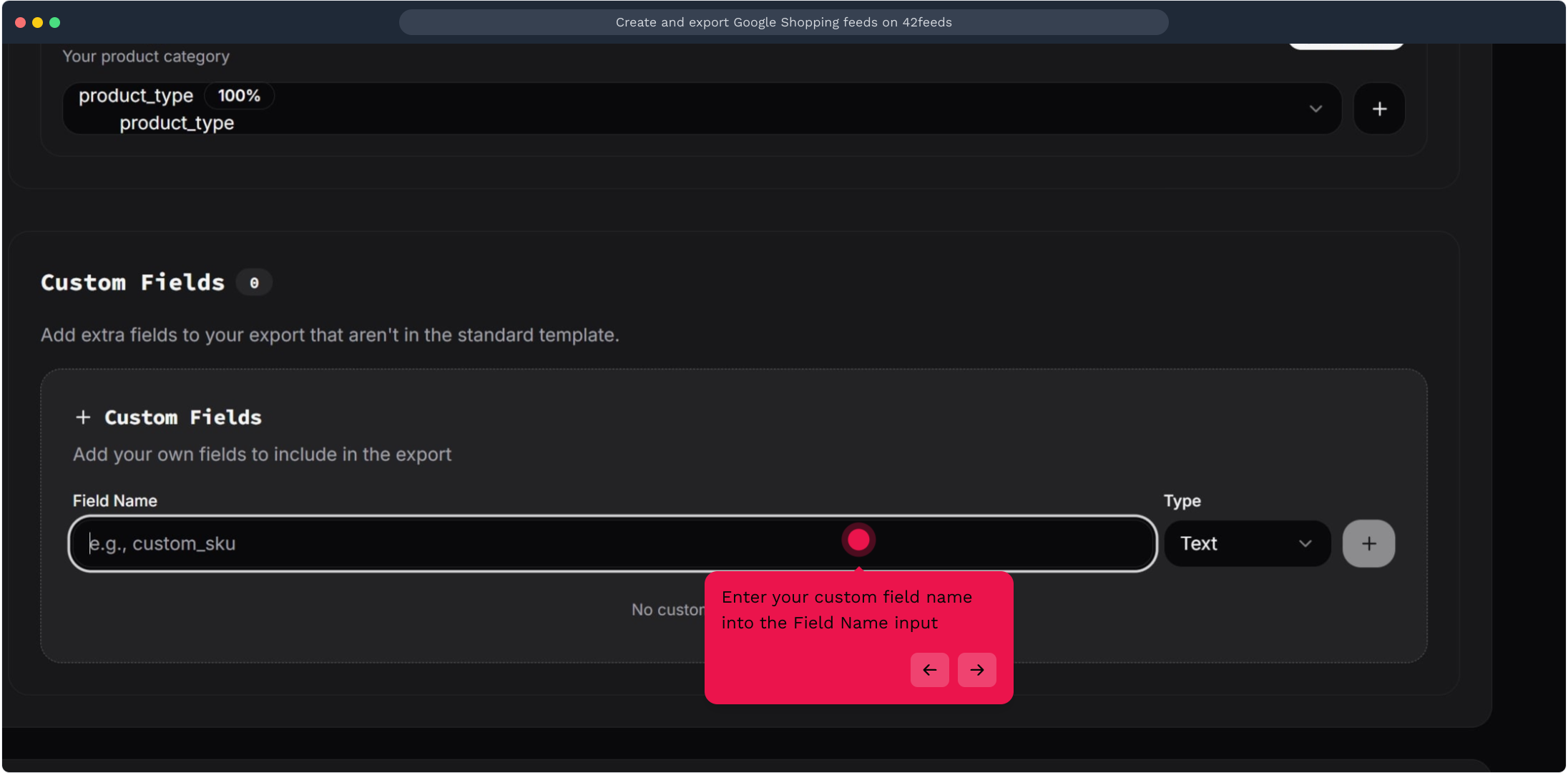
8. Enter your custom field name into the Field Name input
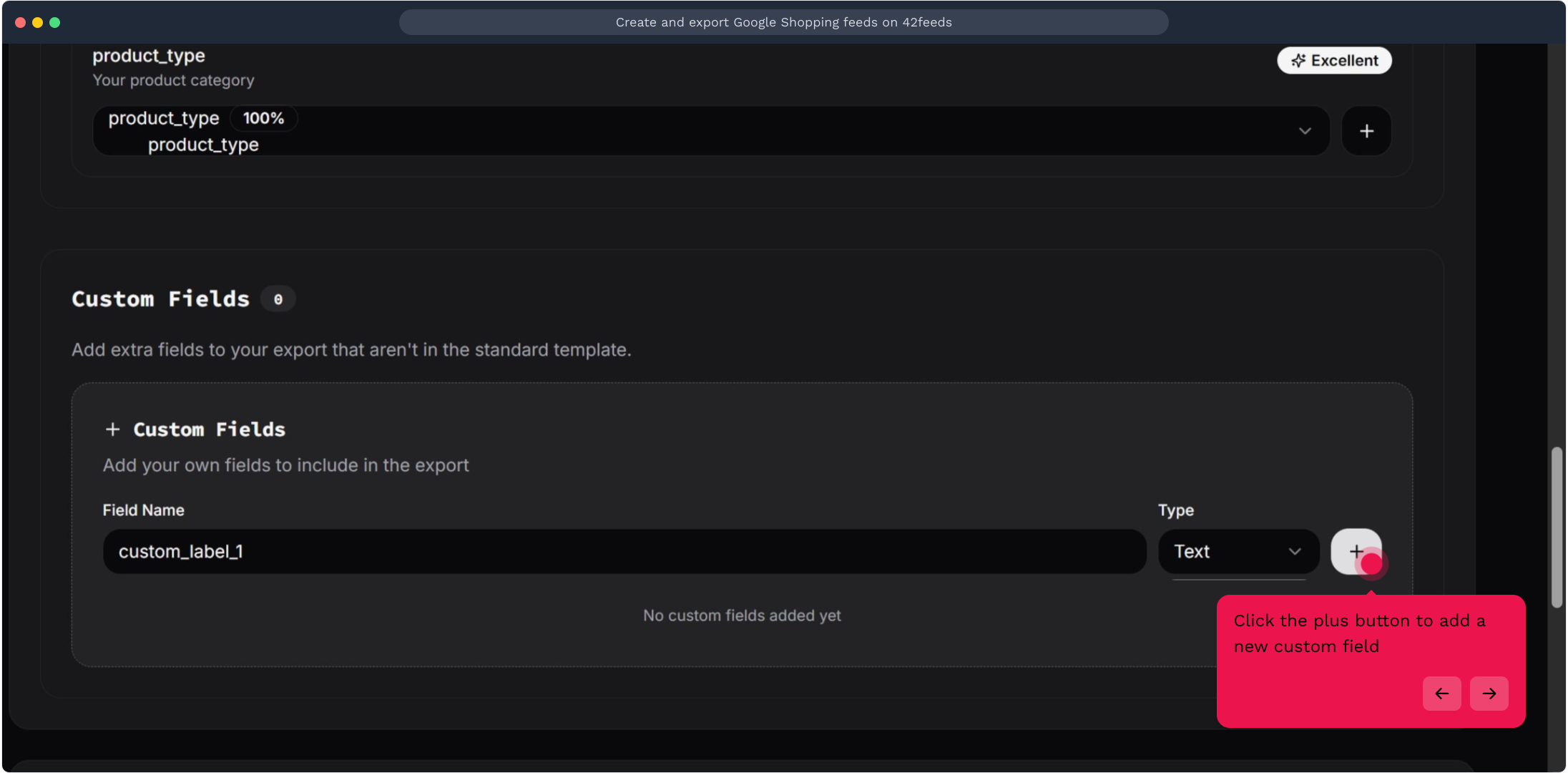
9. Click the plus button to add a new custom field
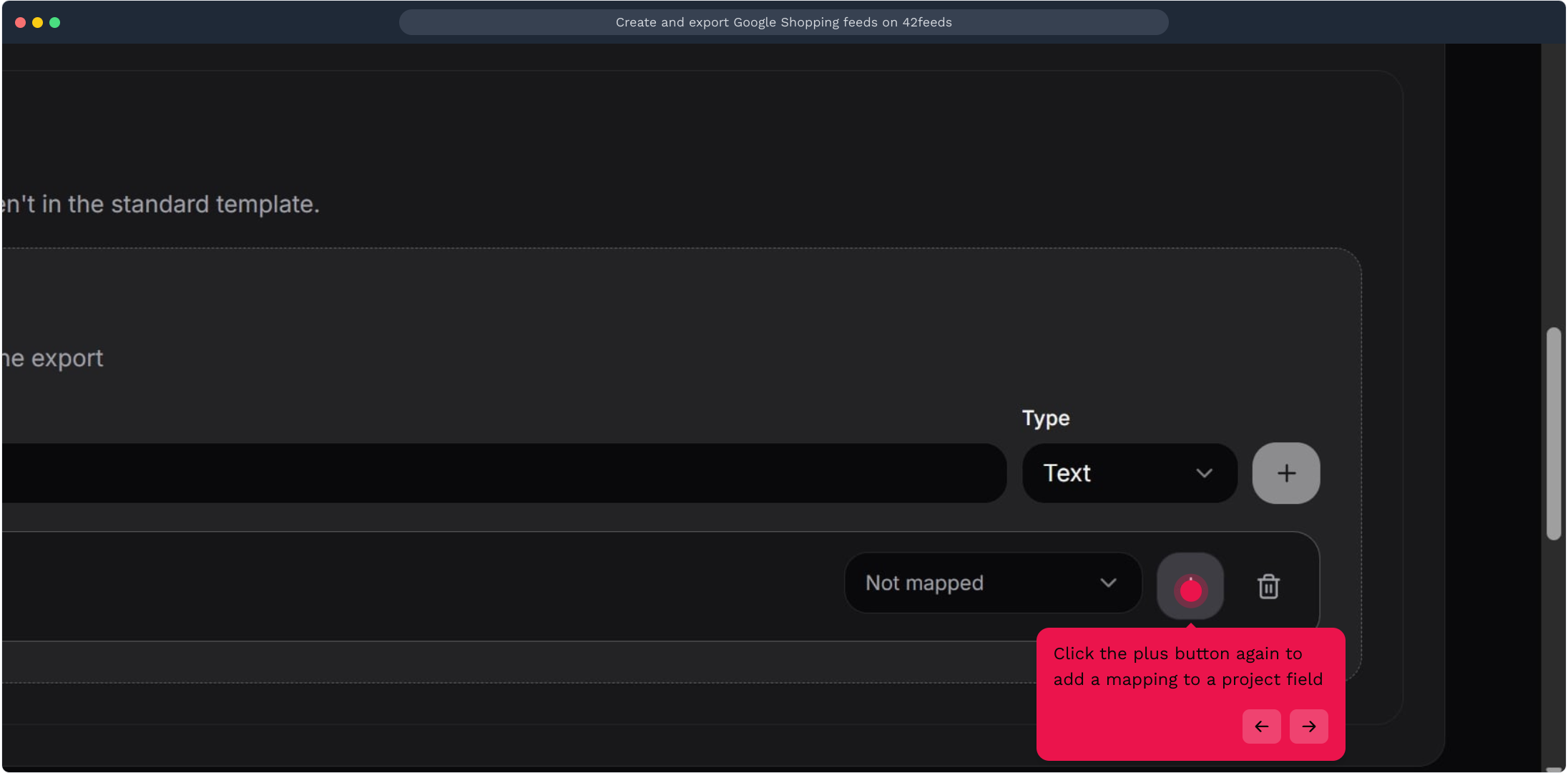
10. Click the plus button again to add a mapping to a project field
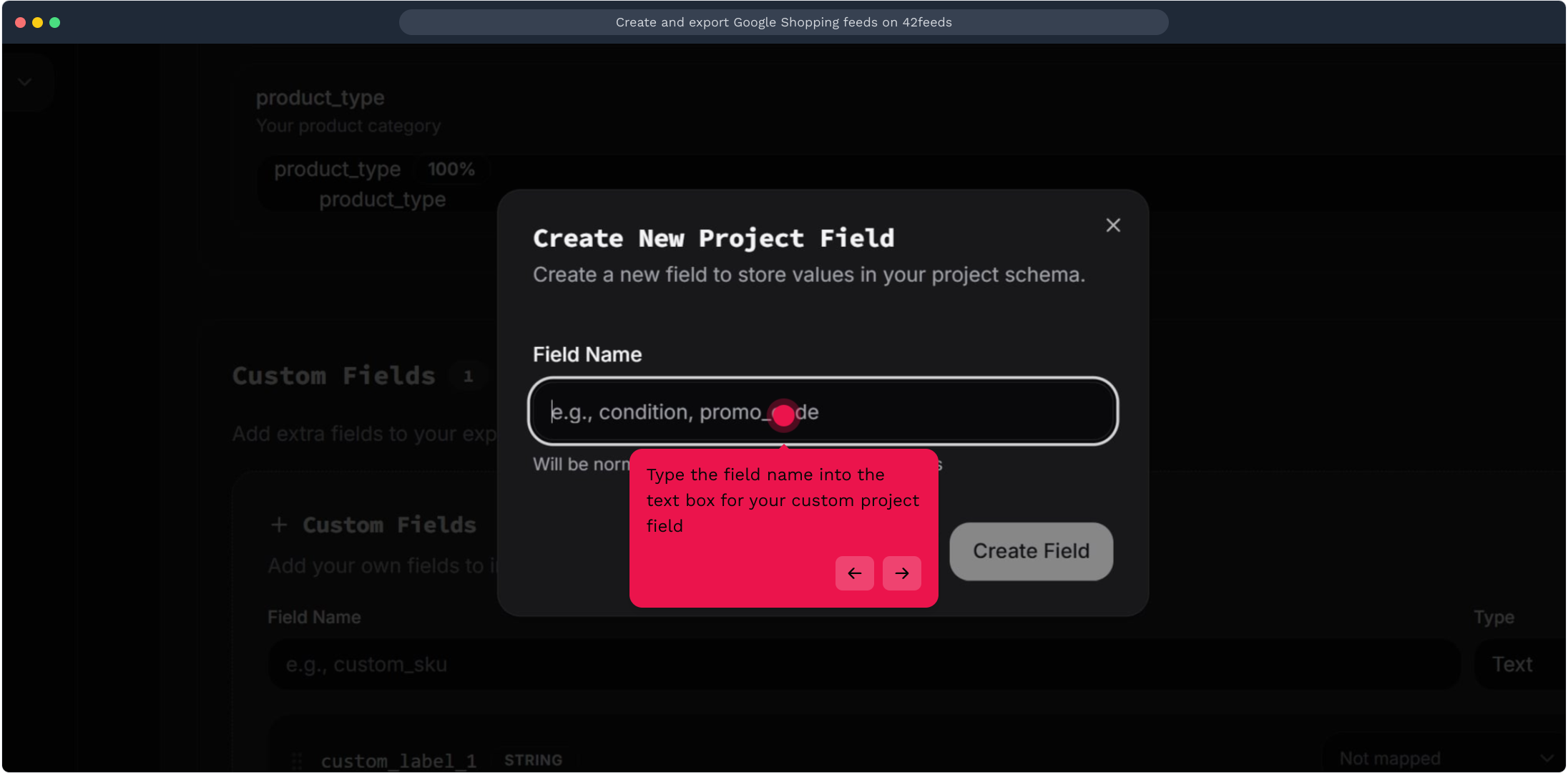
11. Type the field name into the text box for your custom project field
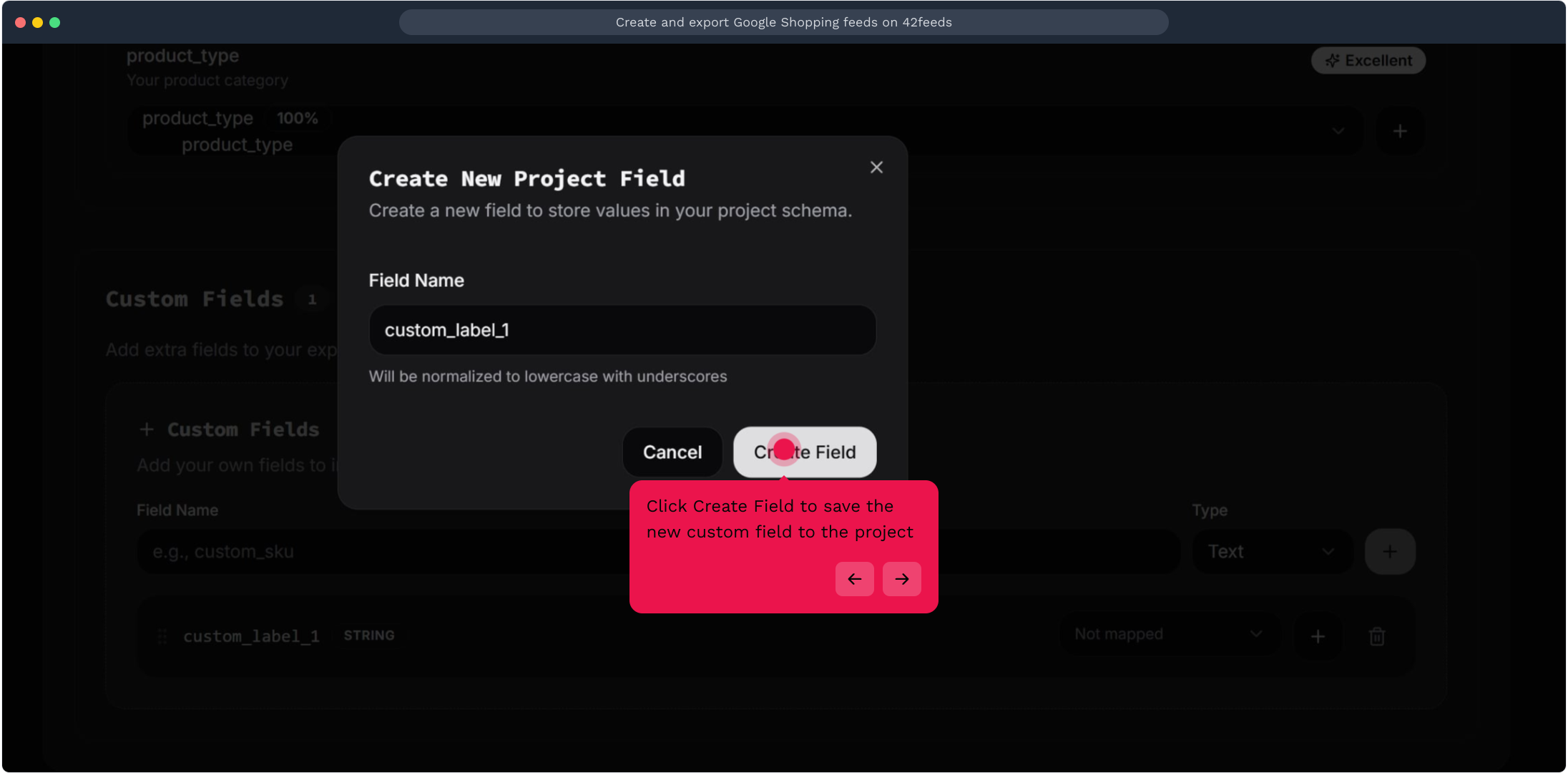
12. Click Create Field to save the new custom field to the project
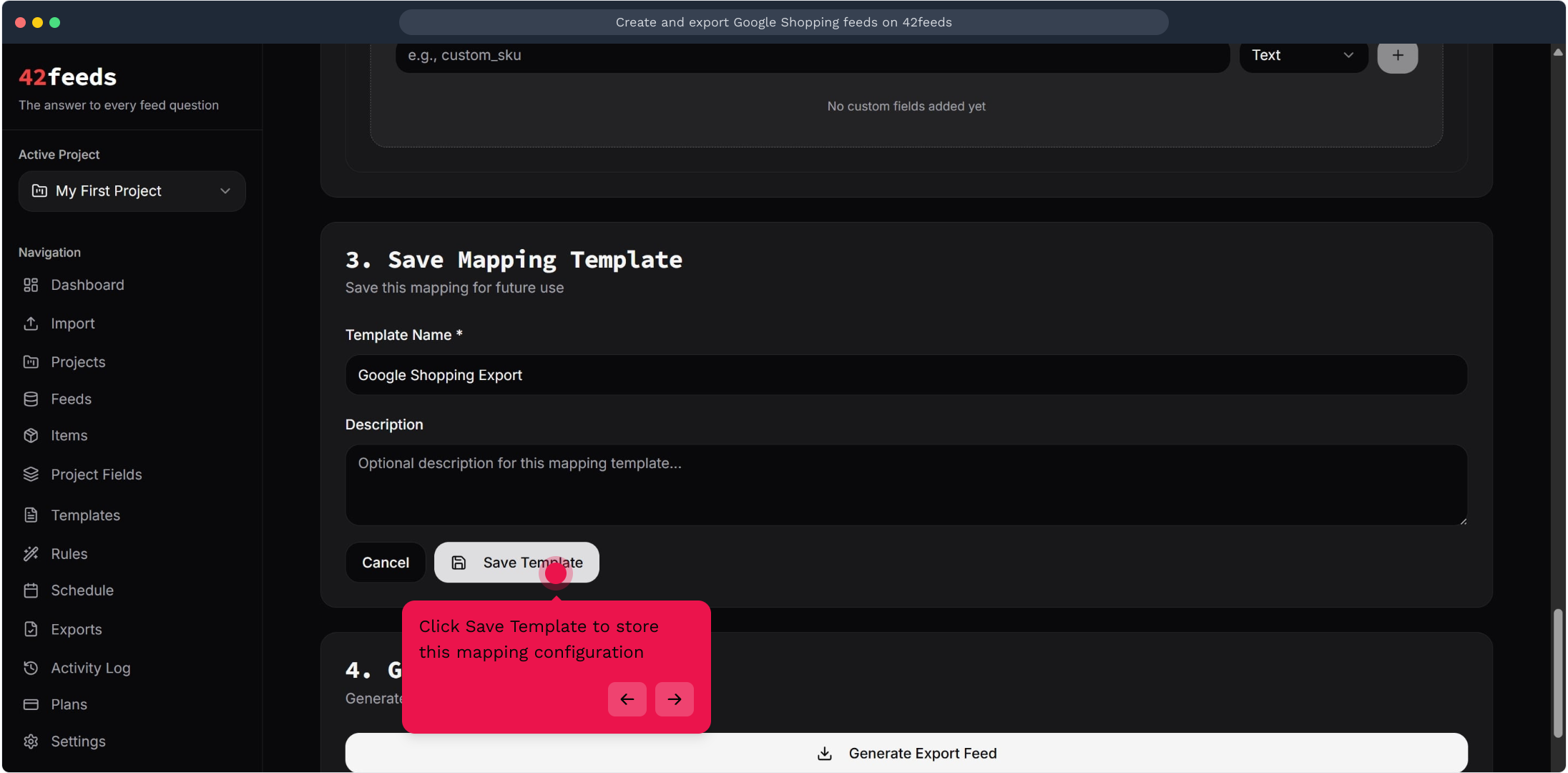
13. Click Save Template to store this mapping configuration
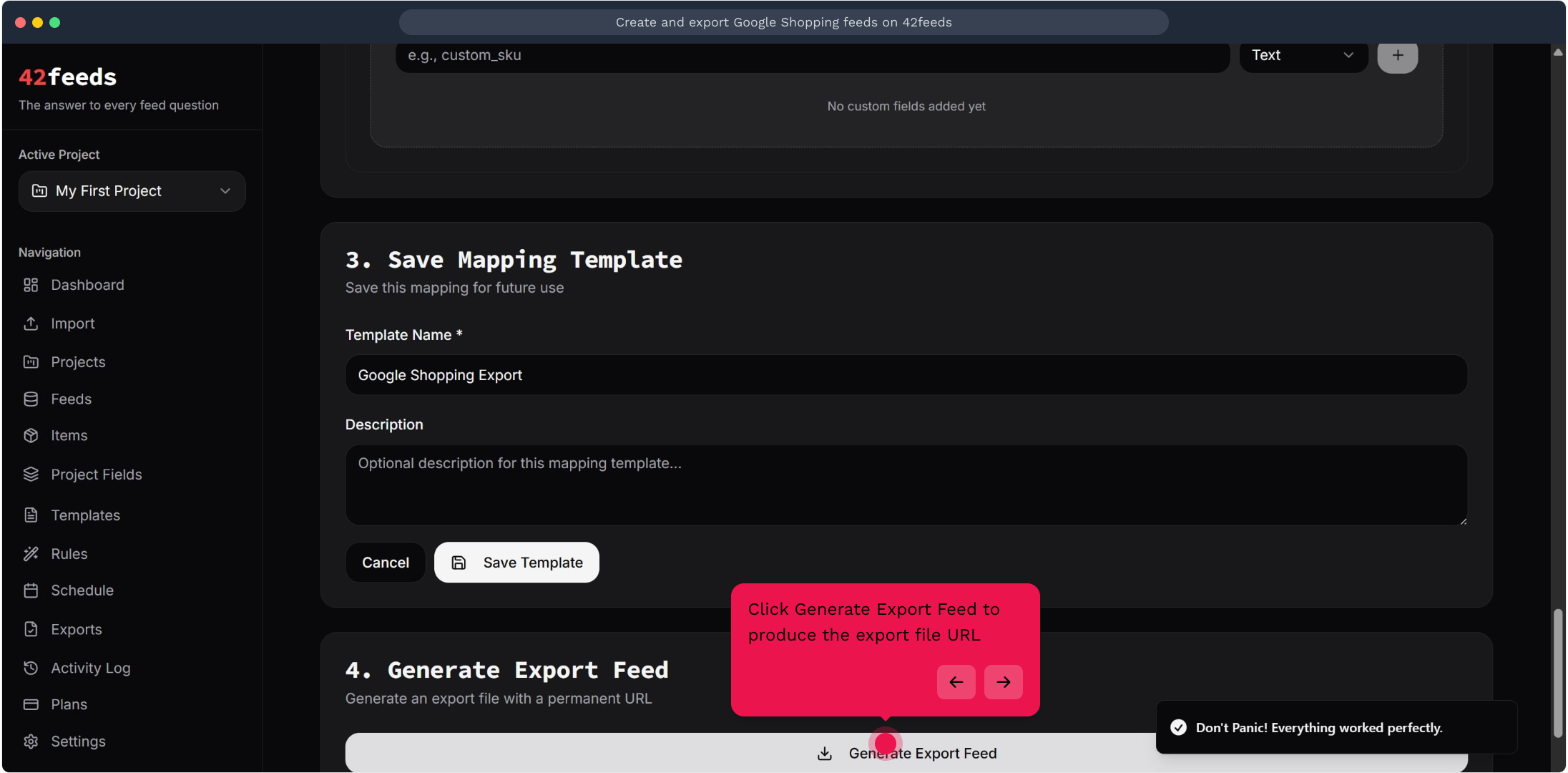
14. Click Generate Export Feed to produce the export file URL
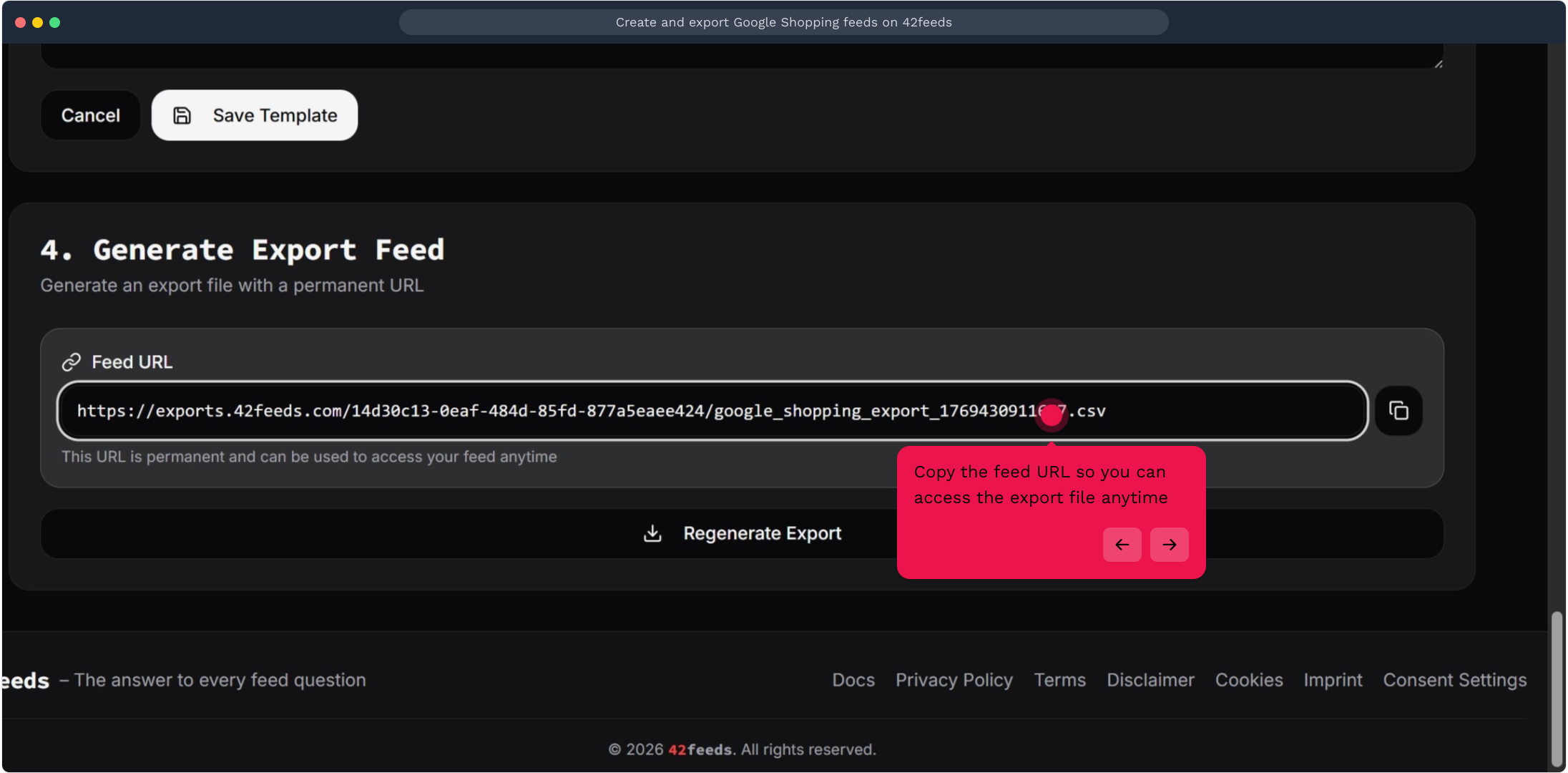
15. Copy the feed URL so you can access the export file anytime
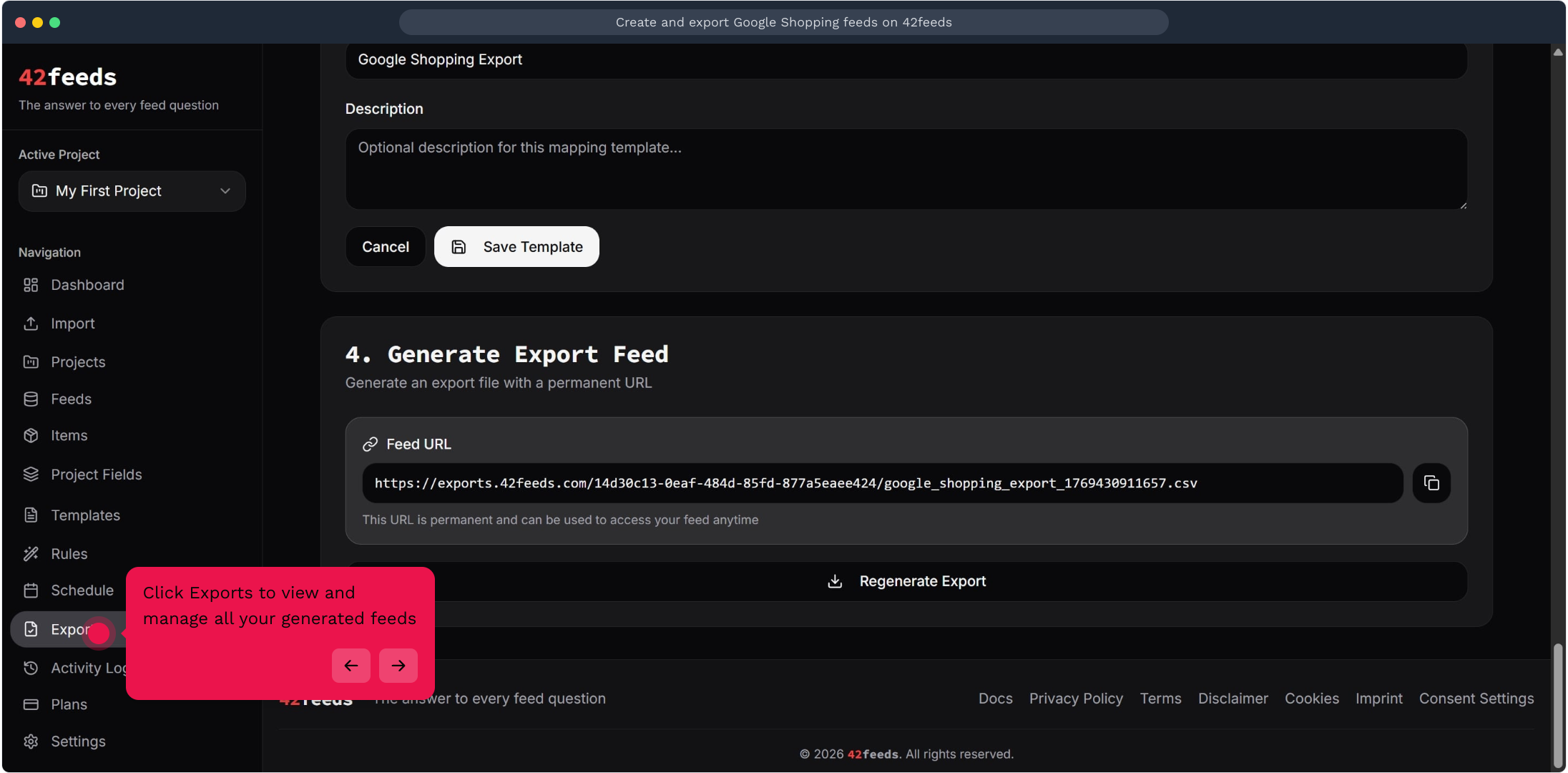
16. Click Exports to view and manage all your generated feeds
This workflow was created with Supademo.