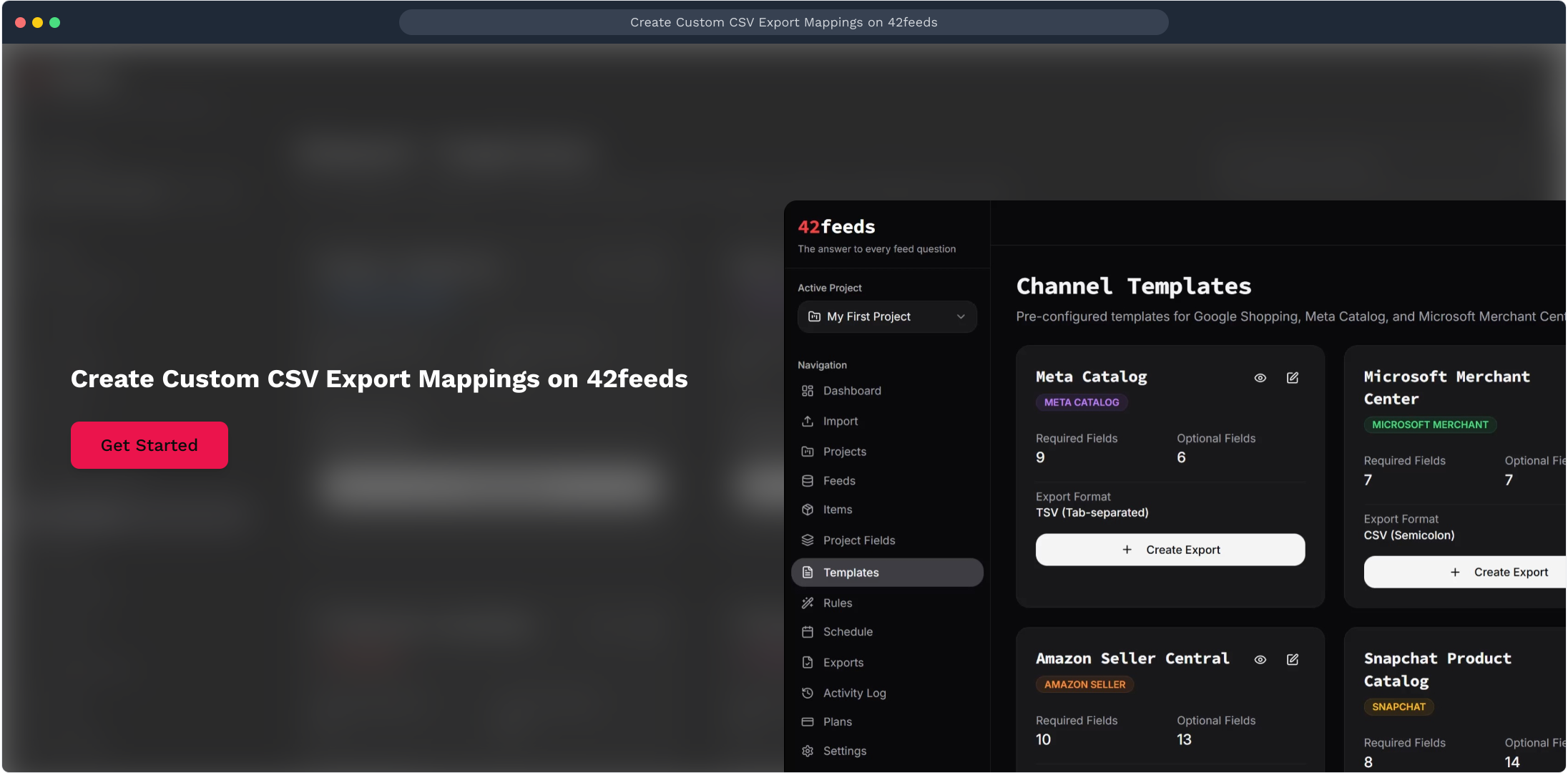
Create Custom CSV Export Mappings on 42feeds
Author: Hello 42feeds Steps: 20 Source: Supademo
Interactive Demo
Try this tutorial directly in your browser:
1. Create Custom CSV Export Mappings on 42feeds
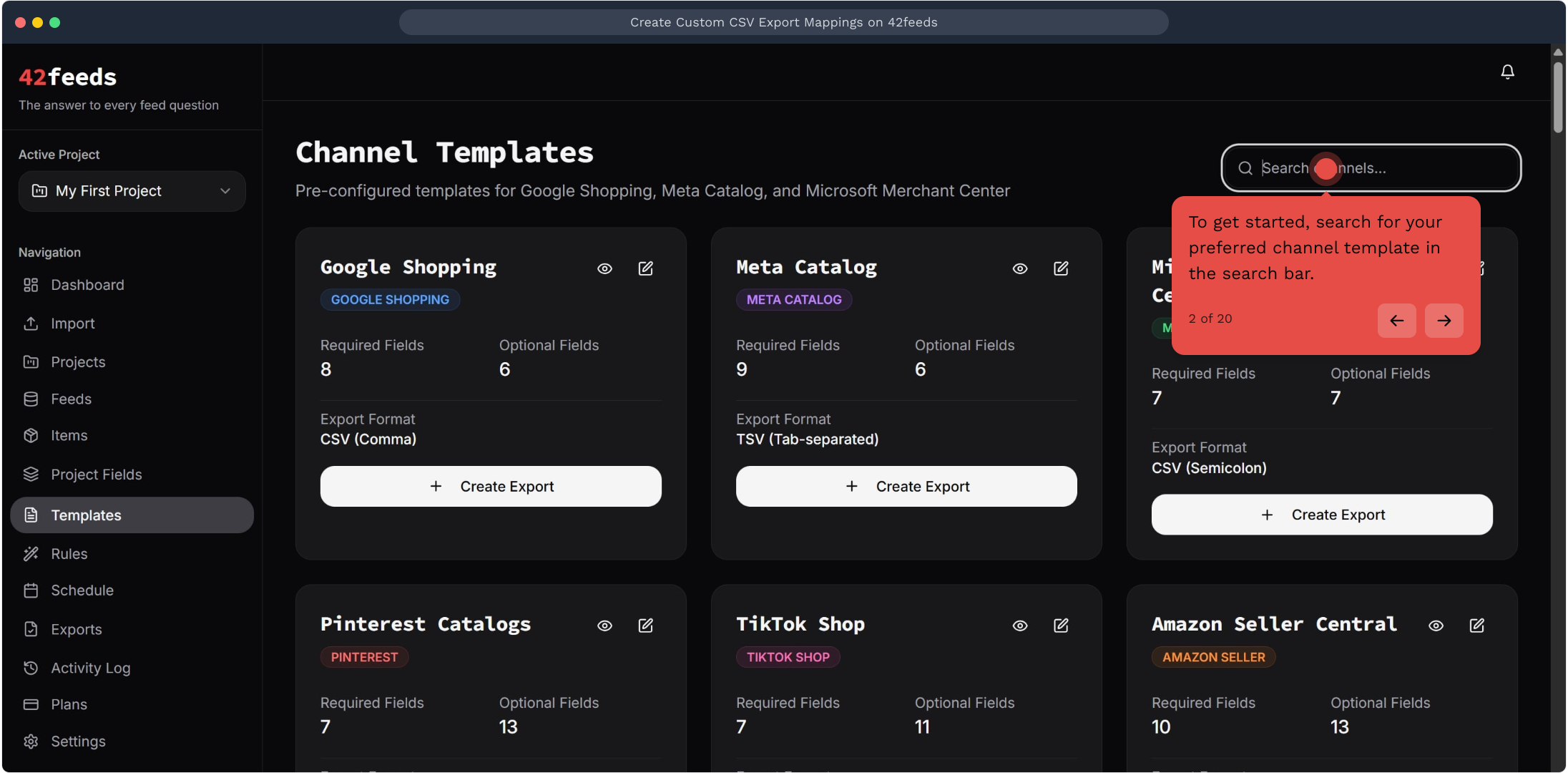
2. To get started, search for your preferred channel template in the search bar
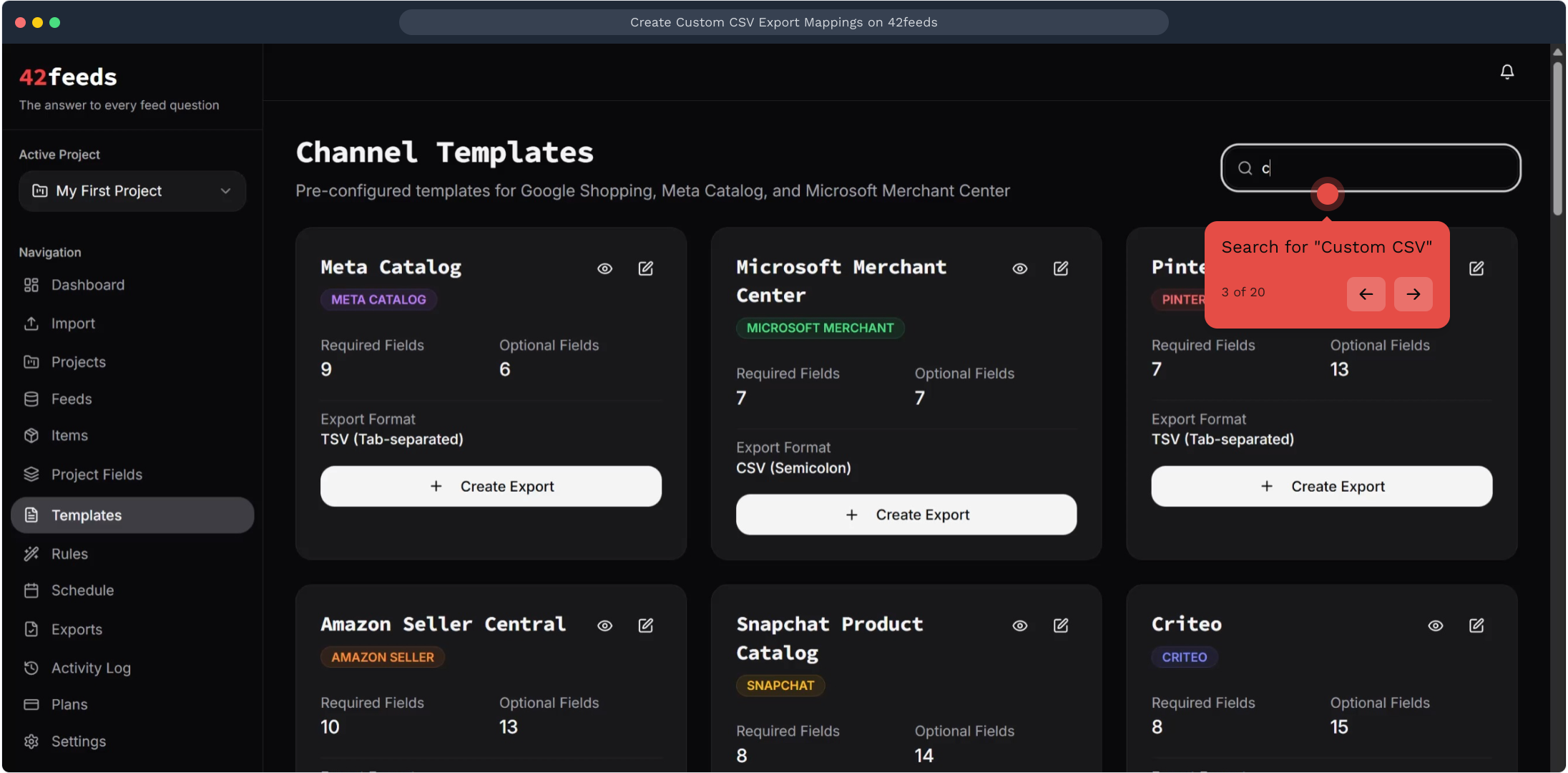
3. Search for "Custom CSV"
4. Video Step
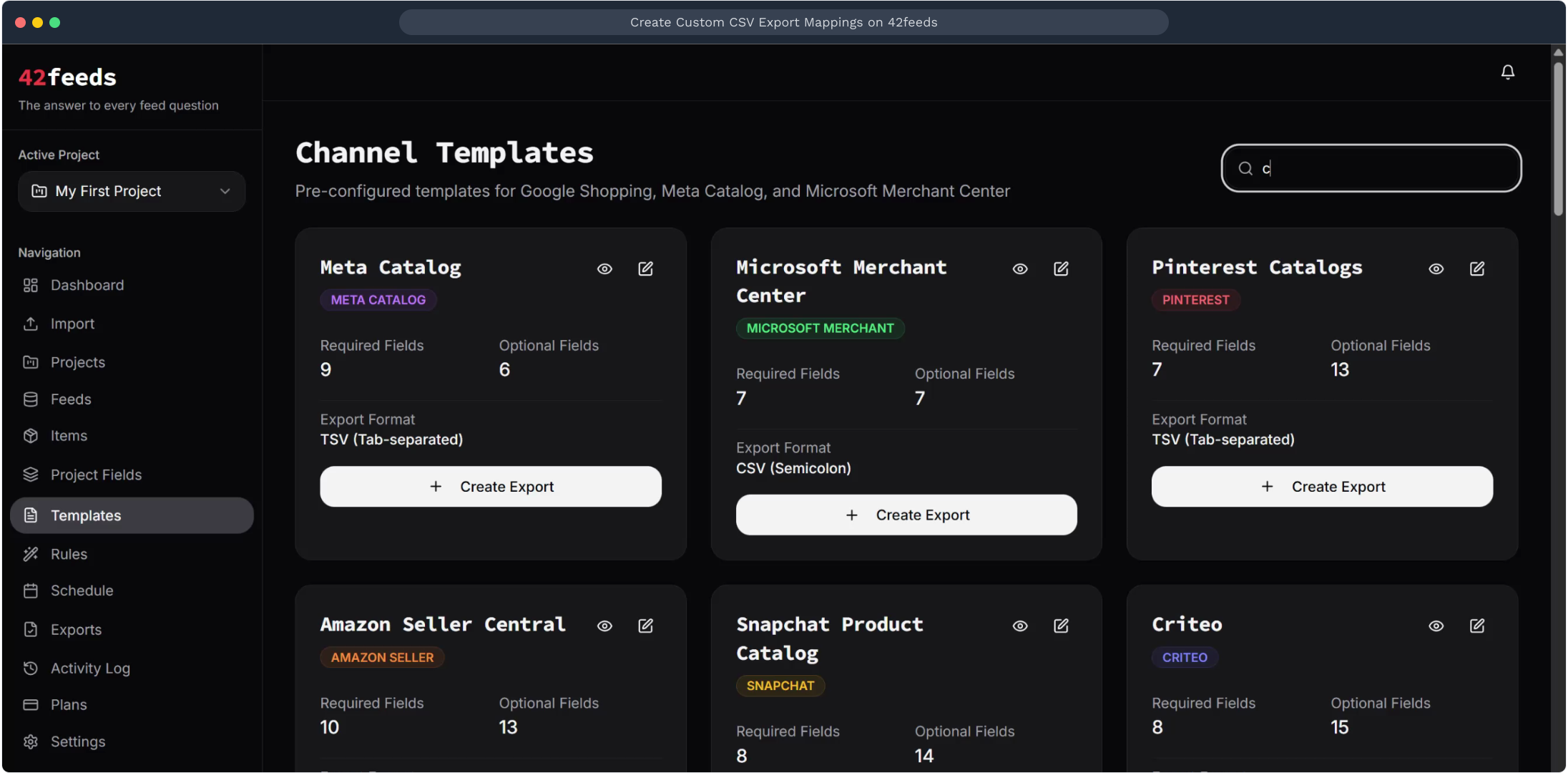
5. Next, click Create Export to generate and download your custom CSV template
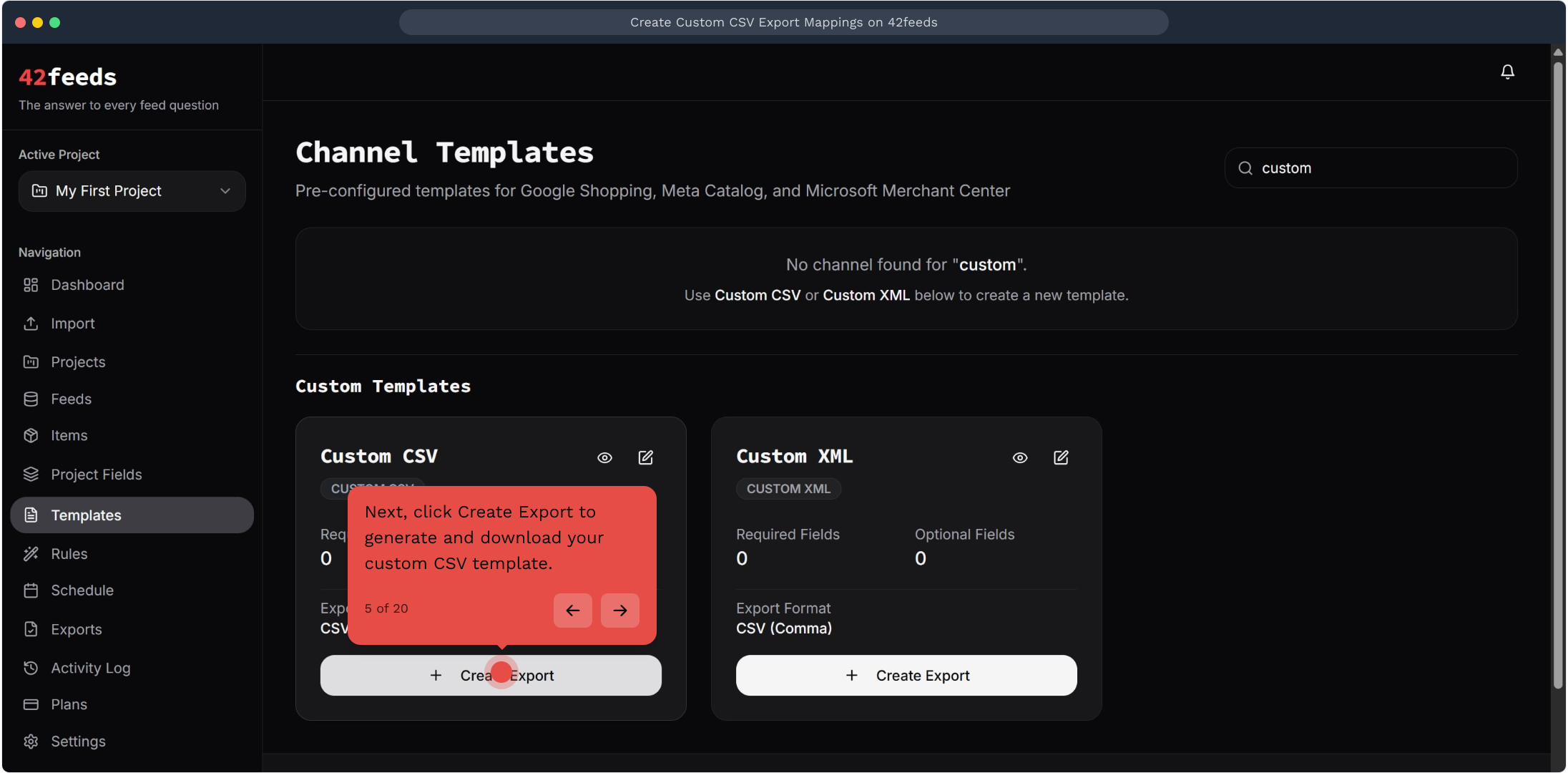
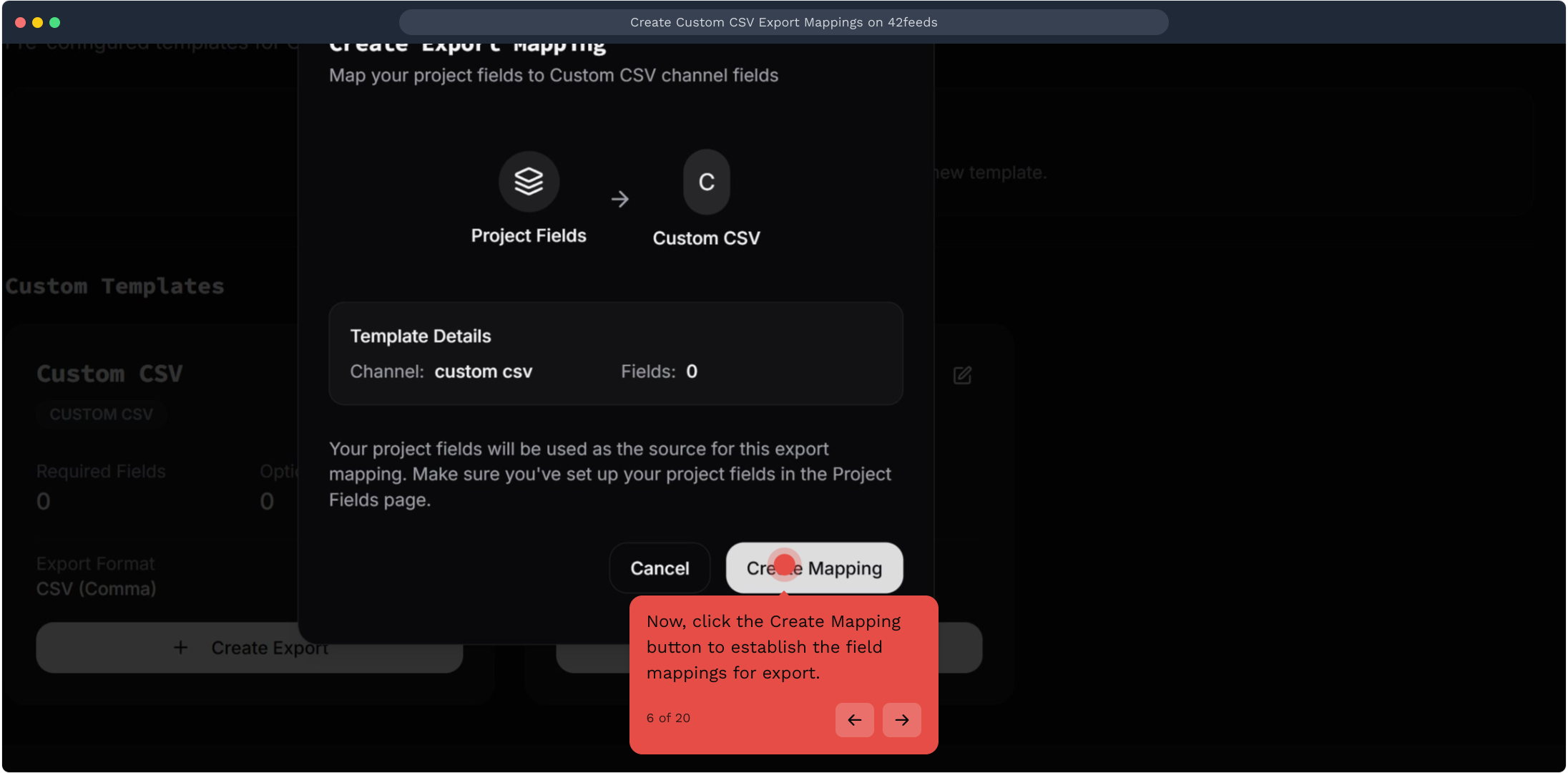
6. Now, click the Create Mapping button to establish the field mappings for export
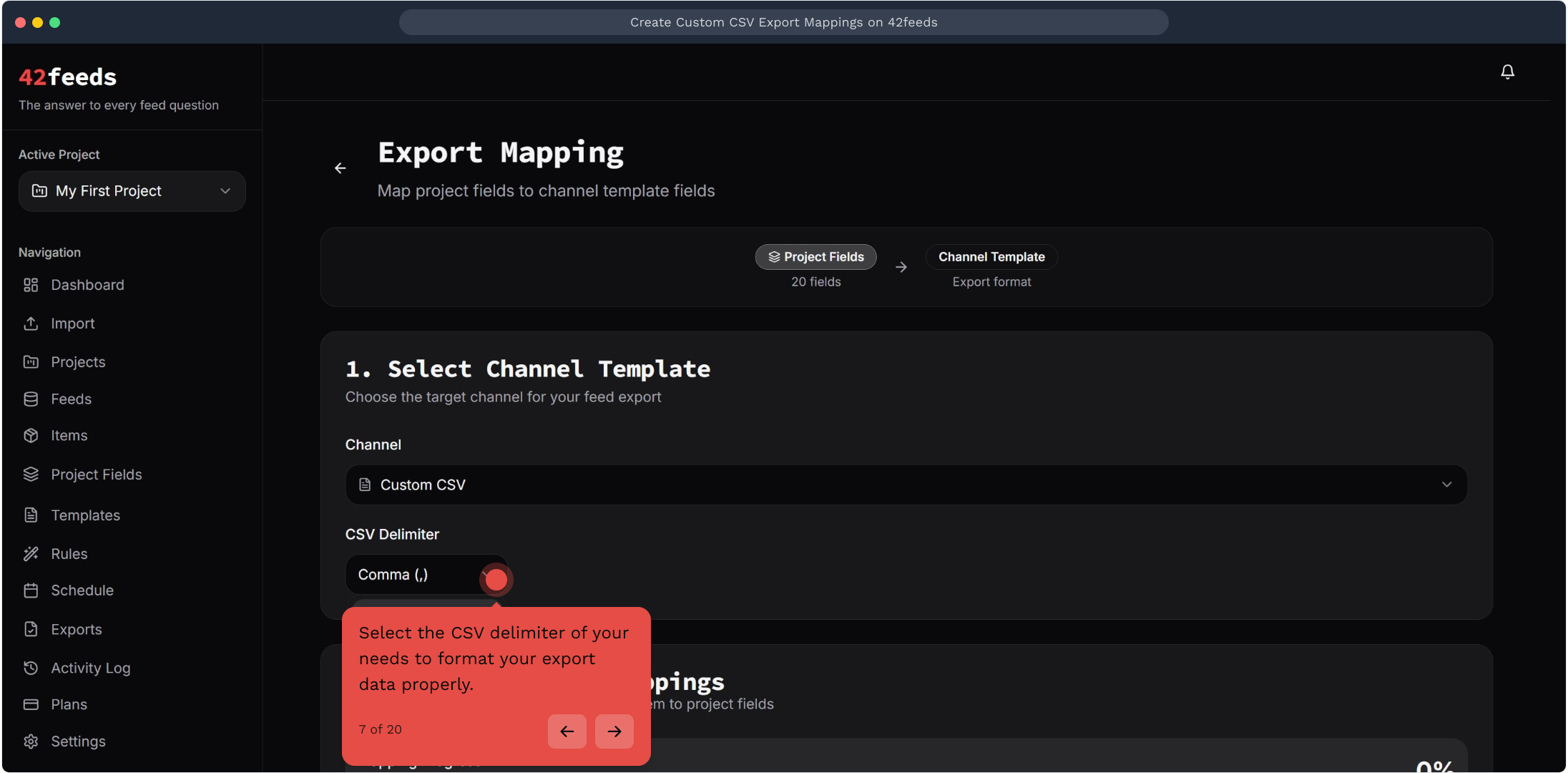
7. Select the CSV delimiter of your needs to format your export data properly
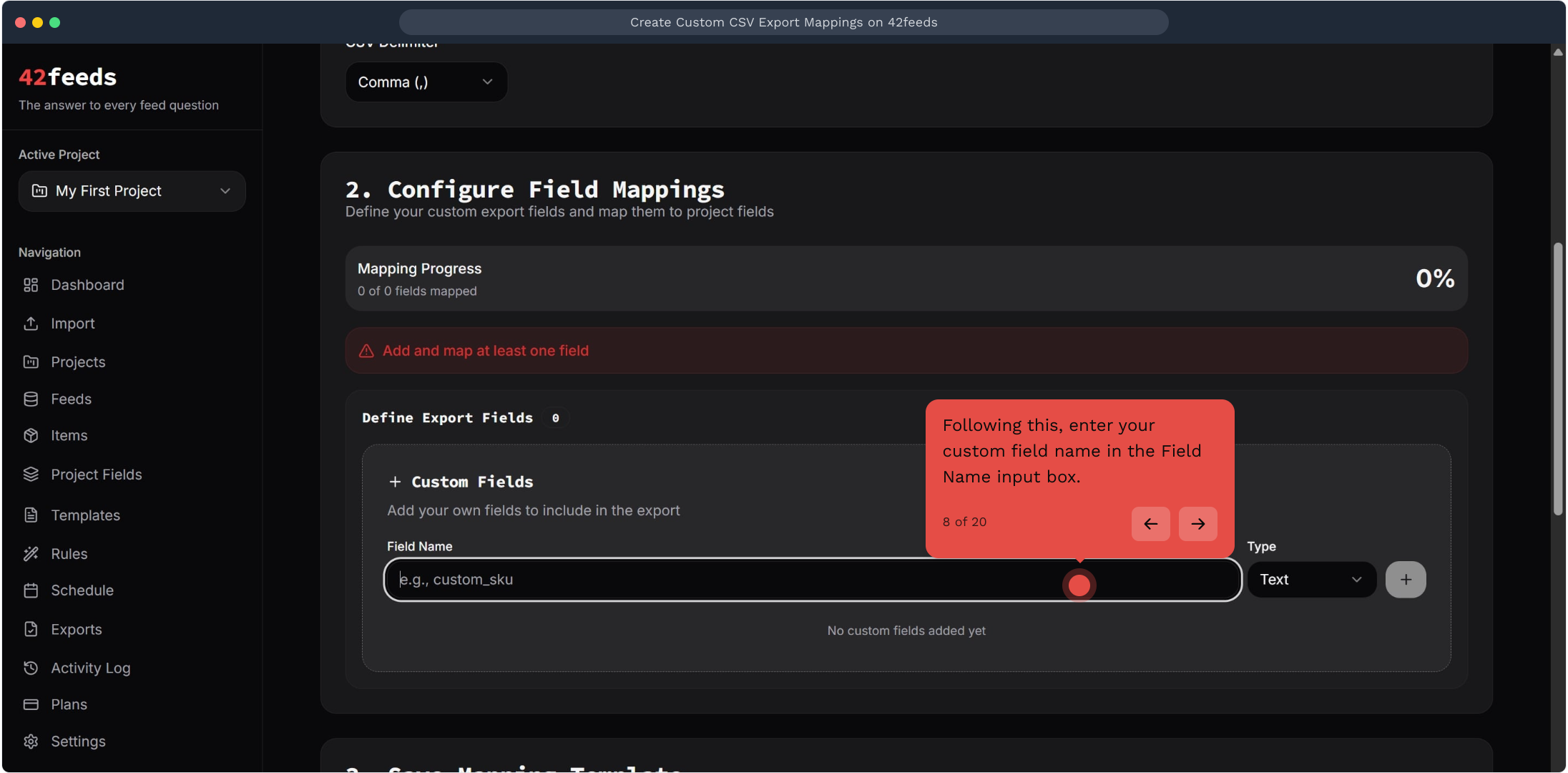
8. Following this, enter your custom field name in the Field Name input box
9. Video Step
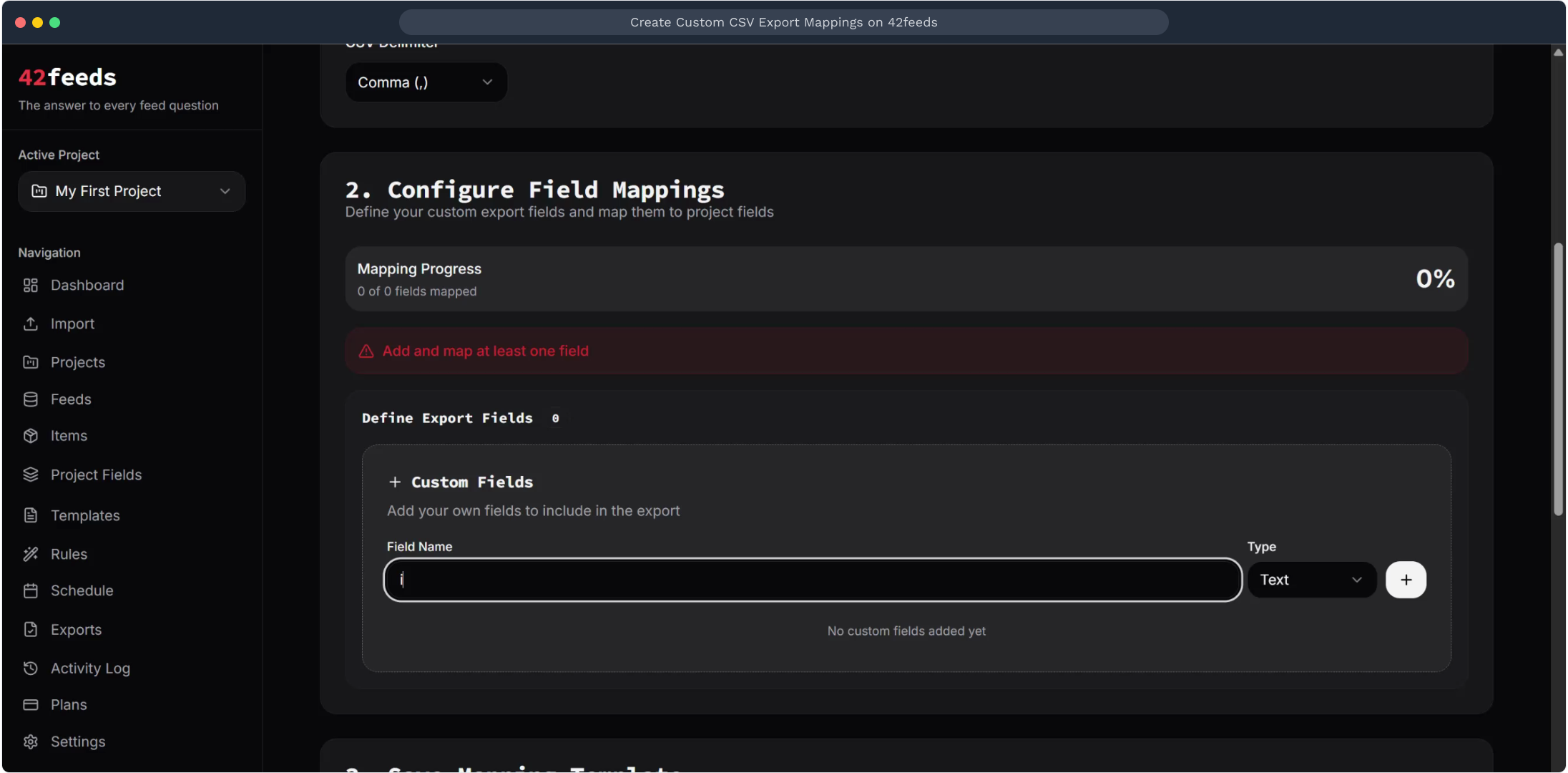
10. Change the type from the dropdown menu to define the export field type
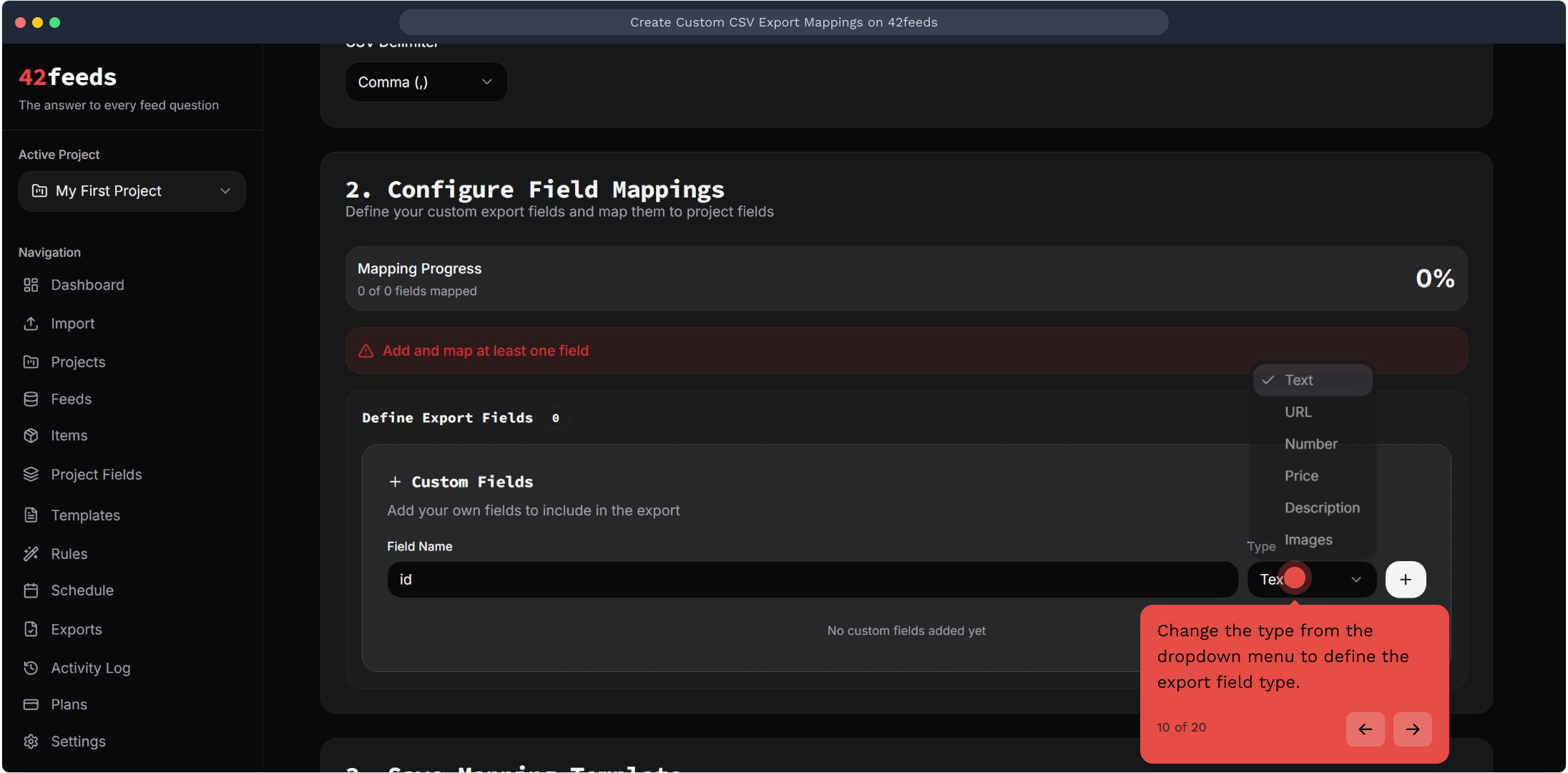
11. In case of an ID, select "number" as type
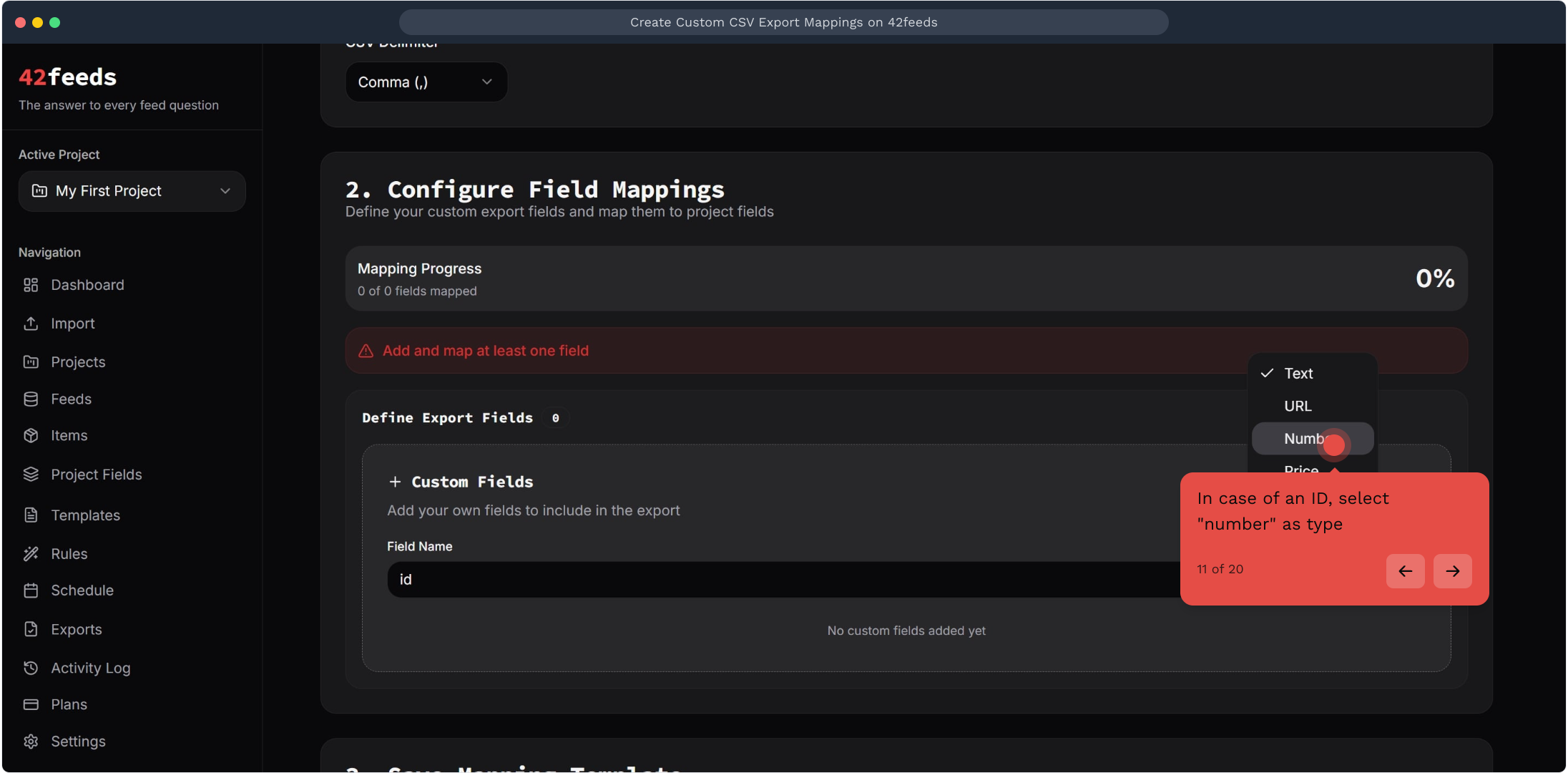
12. Next up, click the plus button to add a new custom field for your export mapping
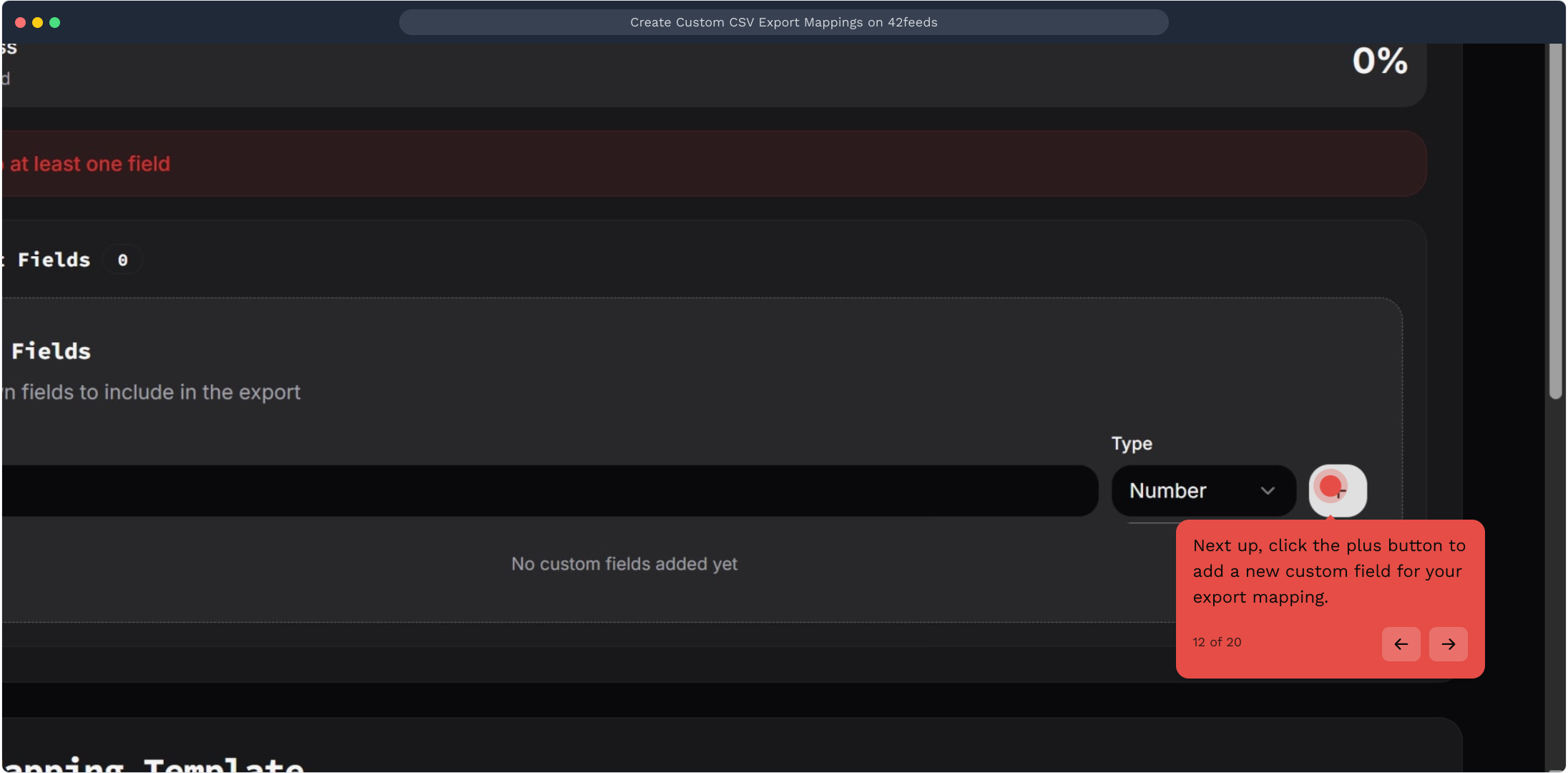
13. Following that, click the "Not mapped" dropdown to select a project field for the id field
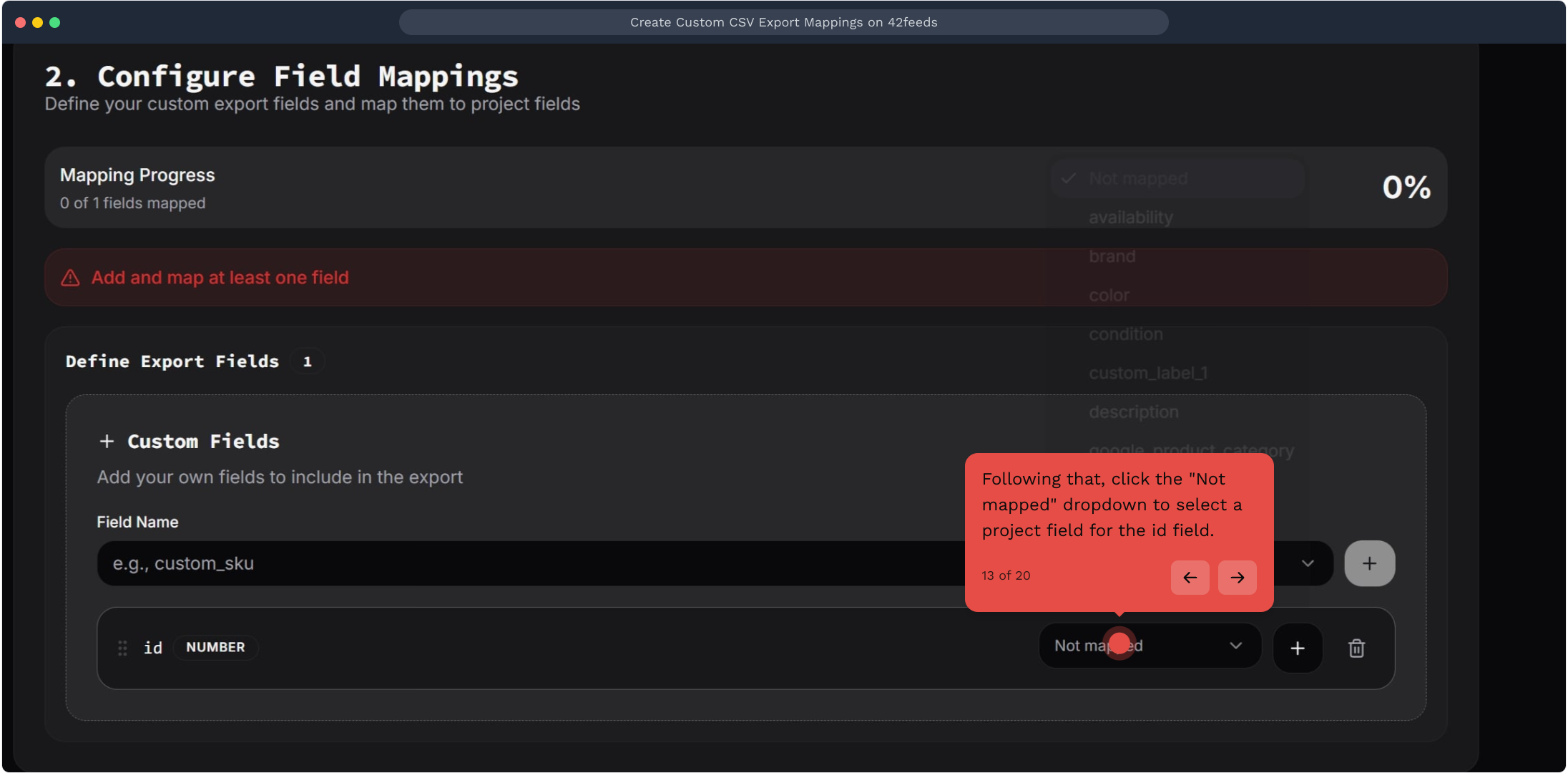
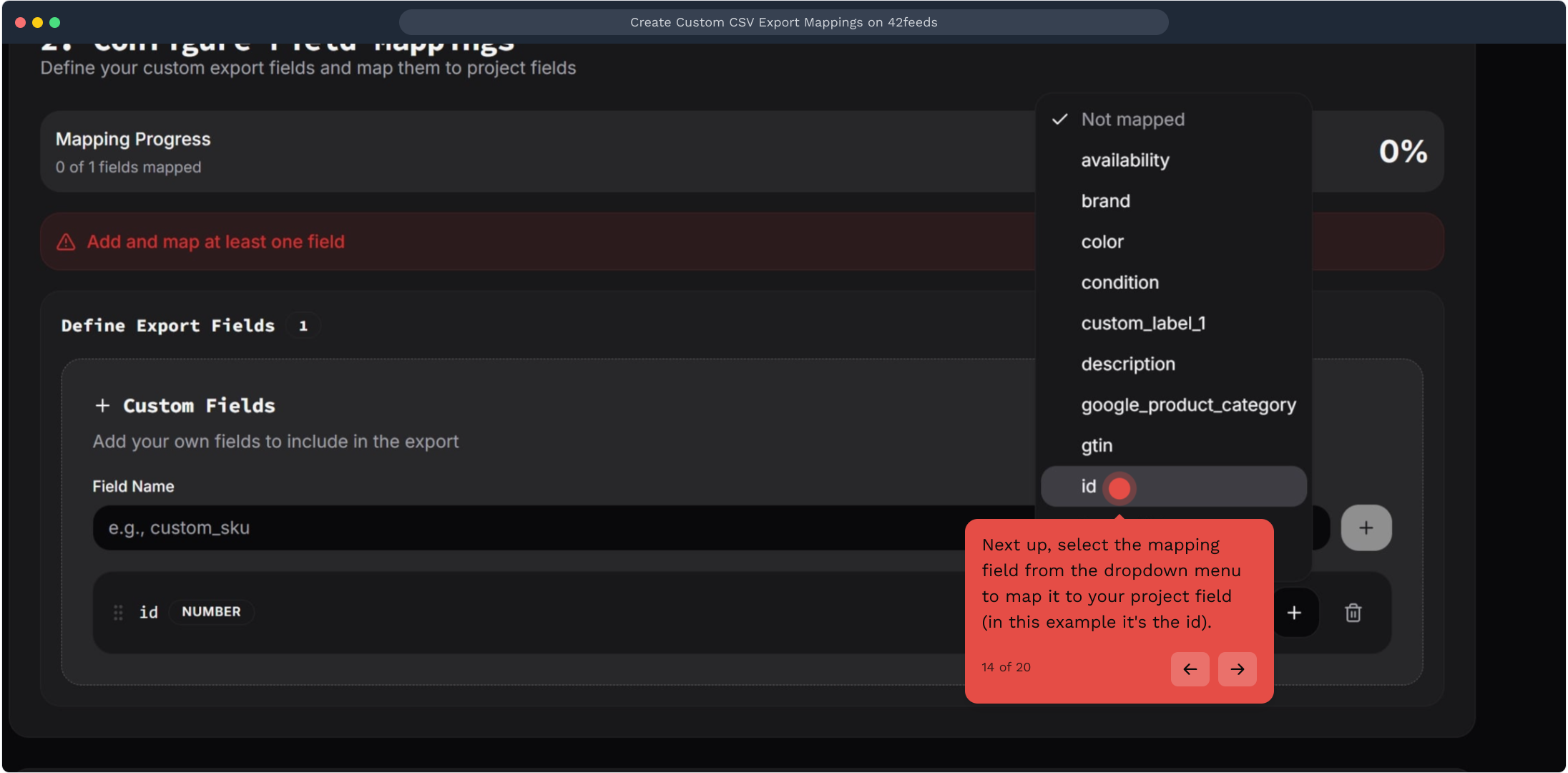
14. Next up, select the mapping field from the dropdown menu to map it to your project field
In this example it's the id.
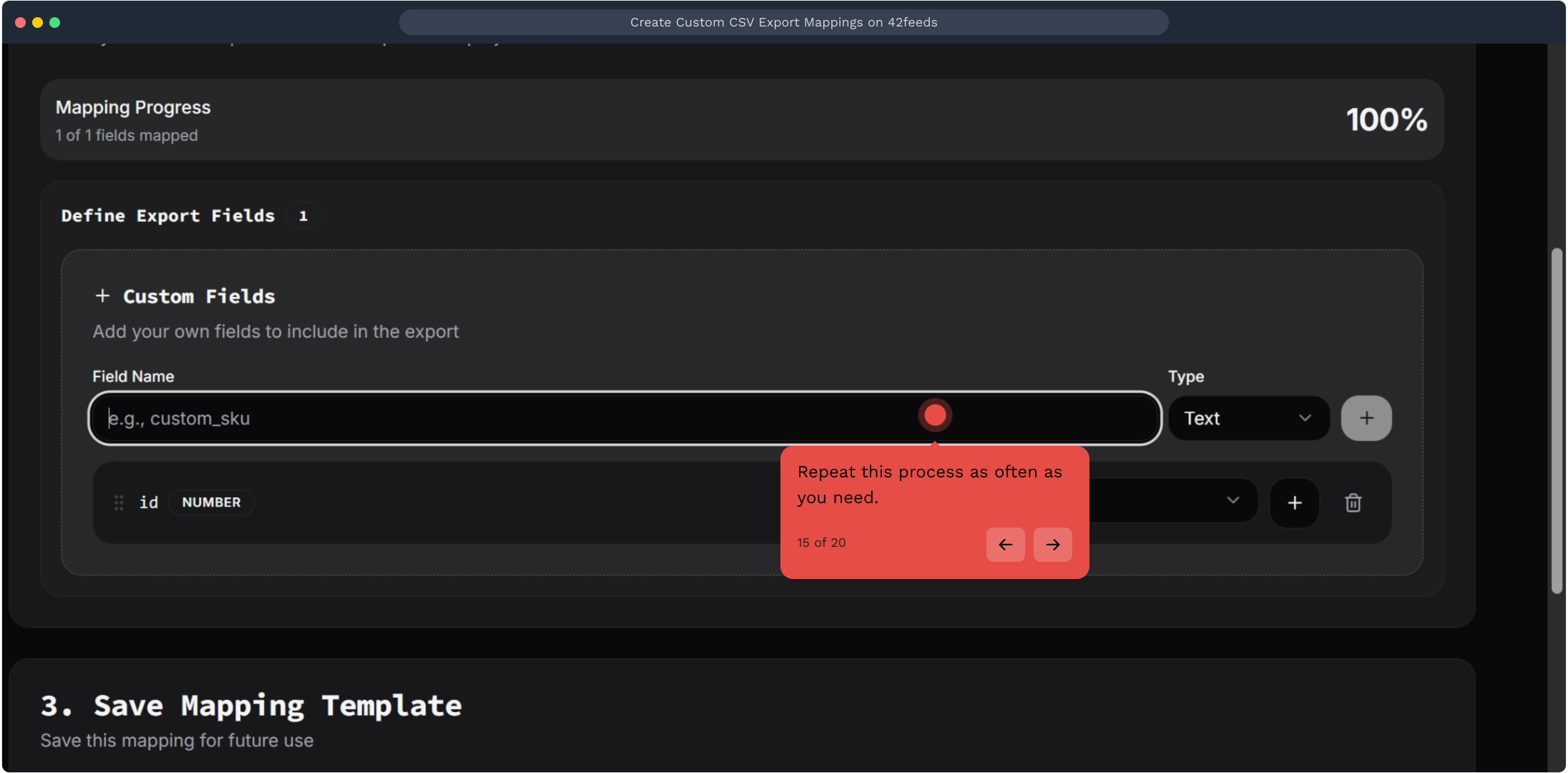
15. Repeat this process as often as you need
16. Video Step
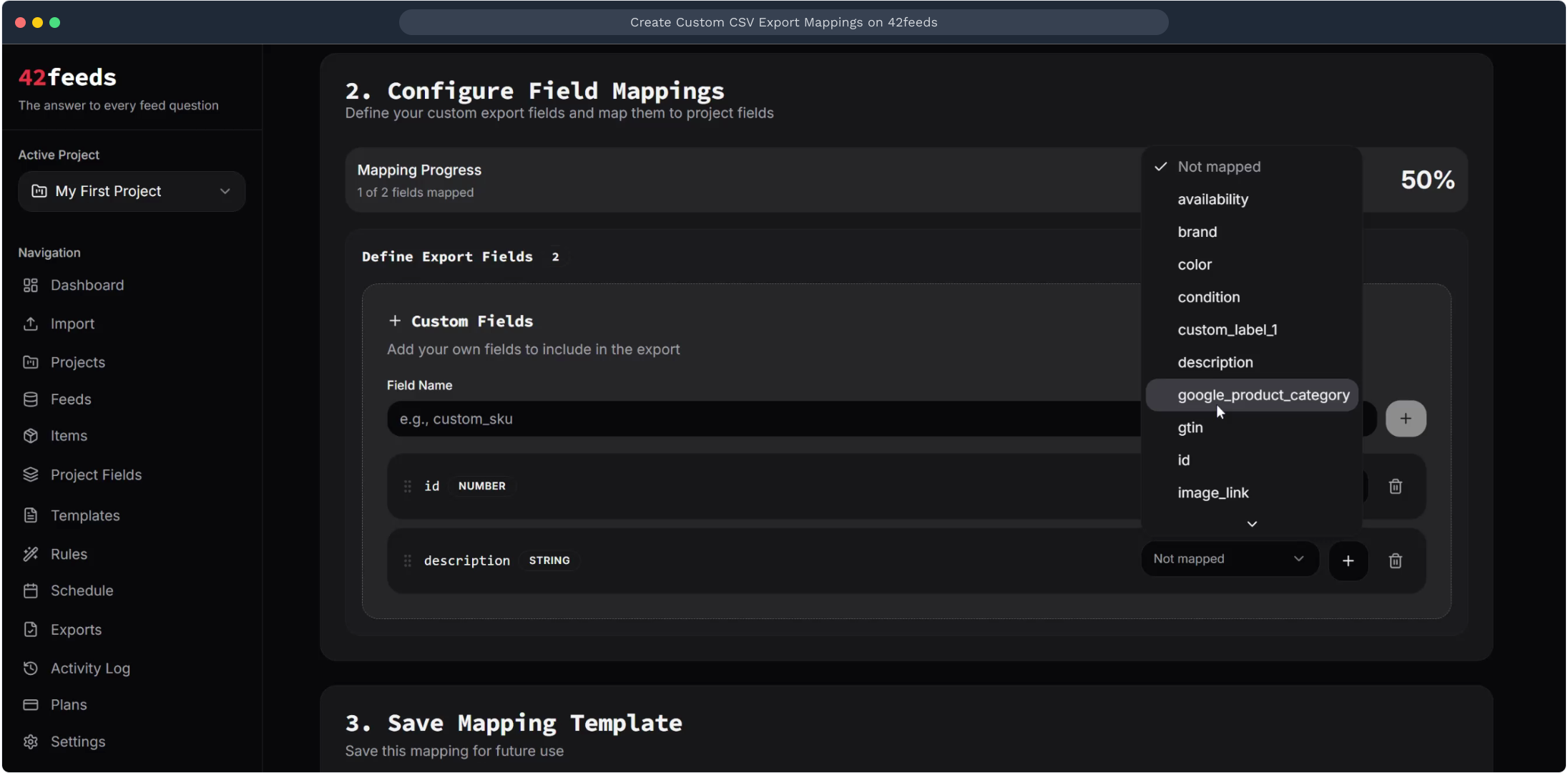
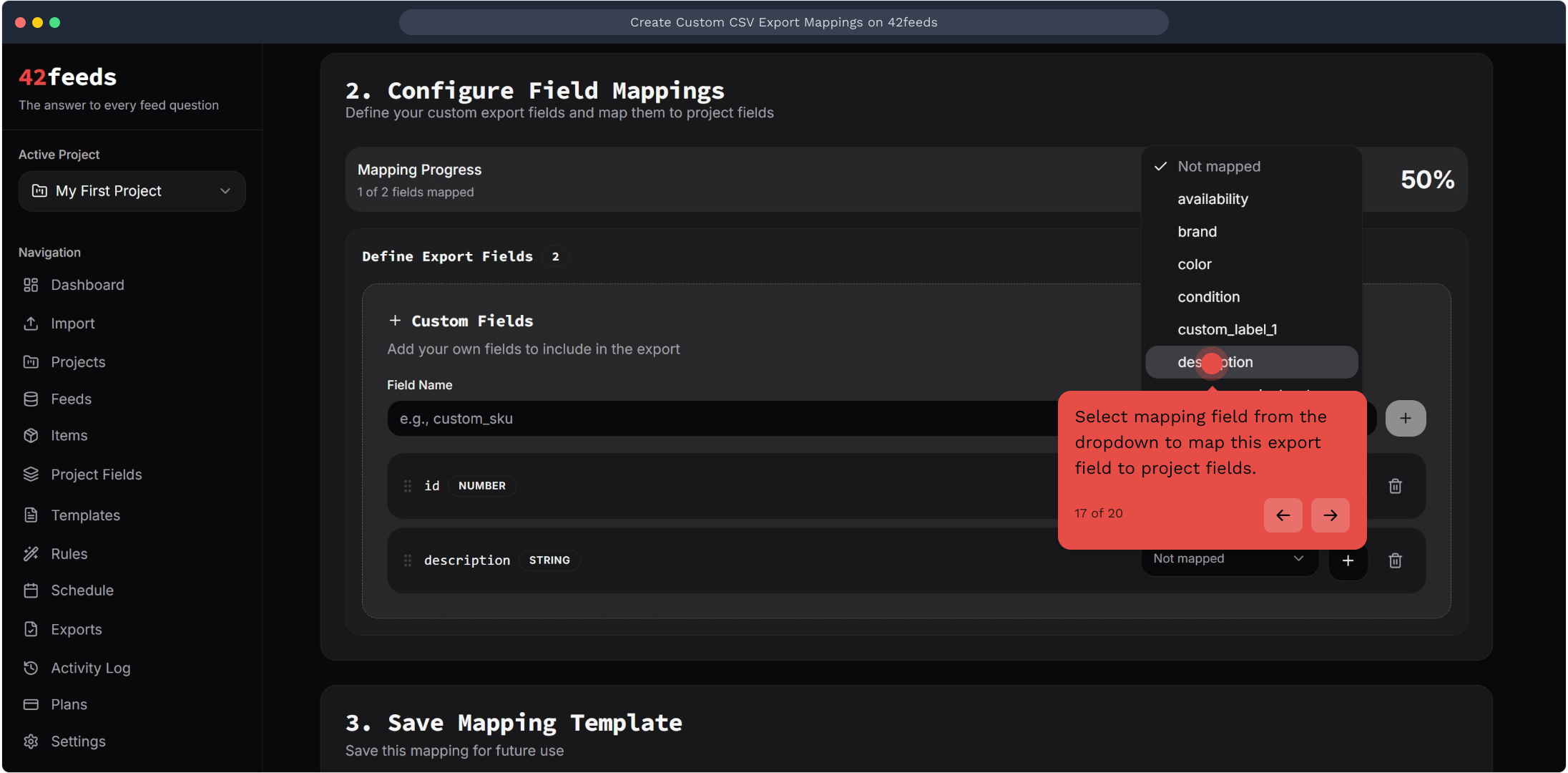
17. Select mapping field from the dropdown to map this export field to project fields
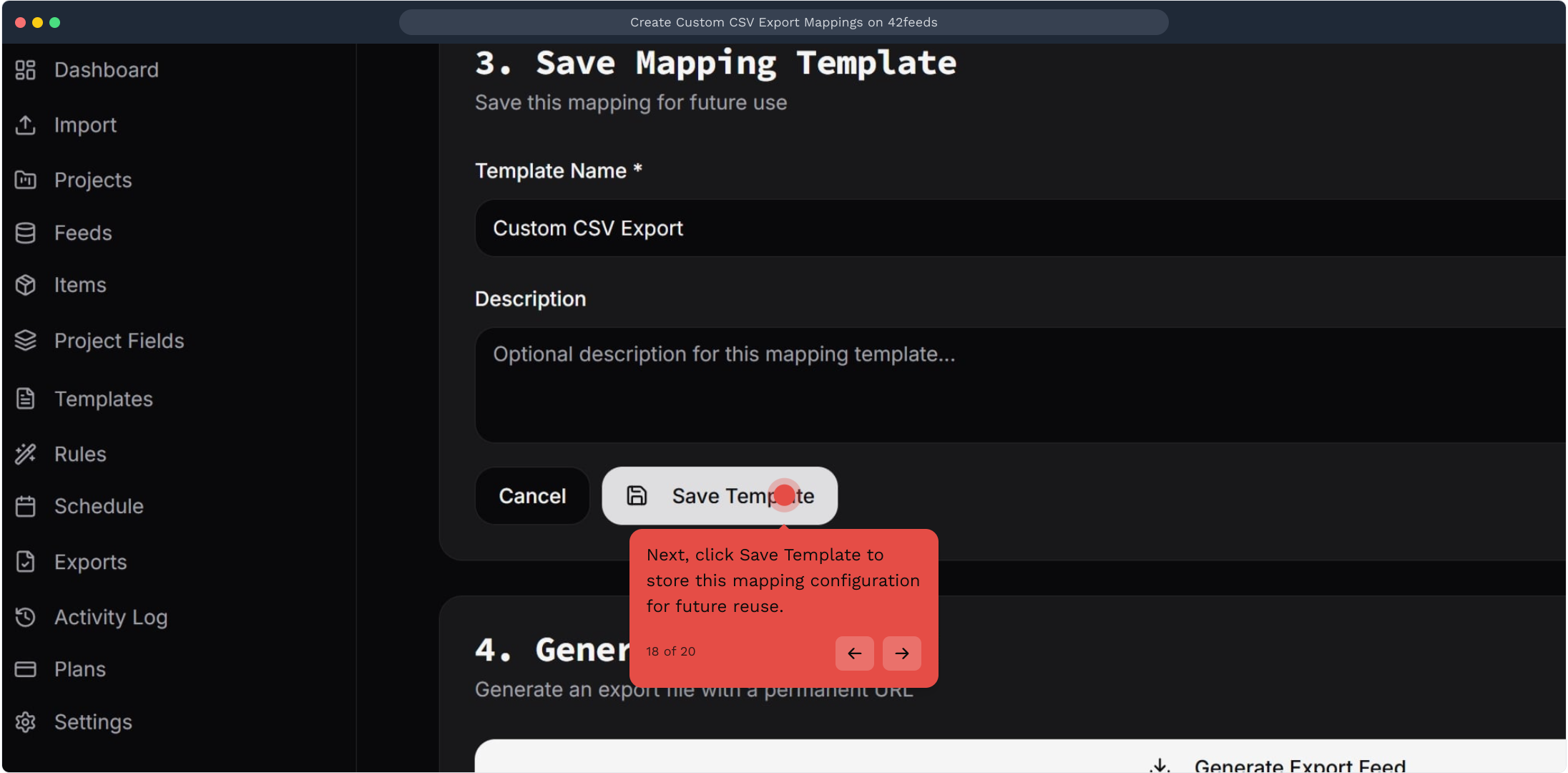
18. Next, click Save Template to store this mapping configuration for future reuse
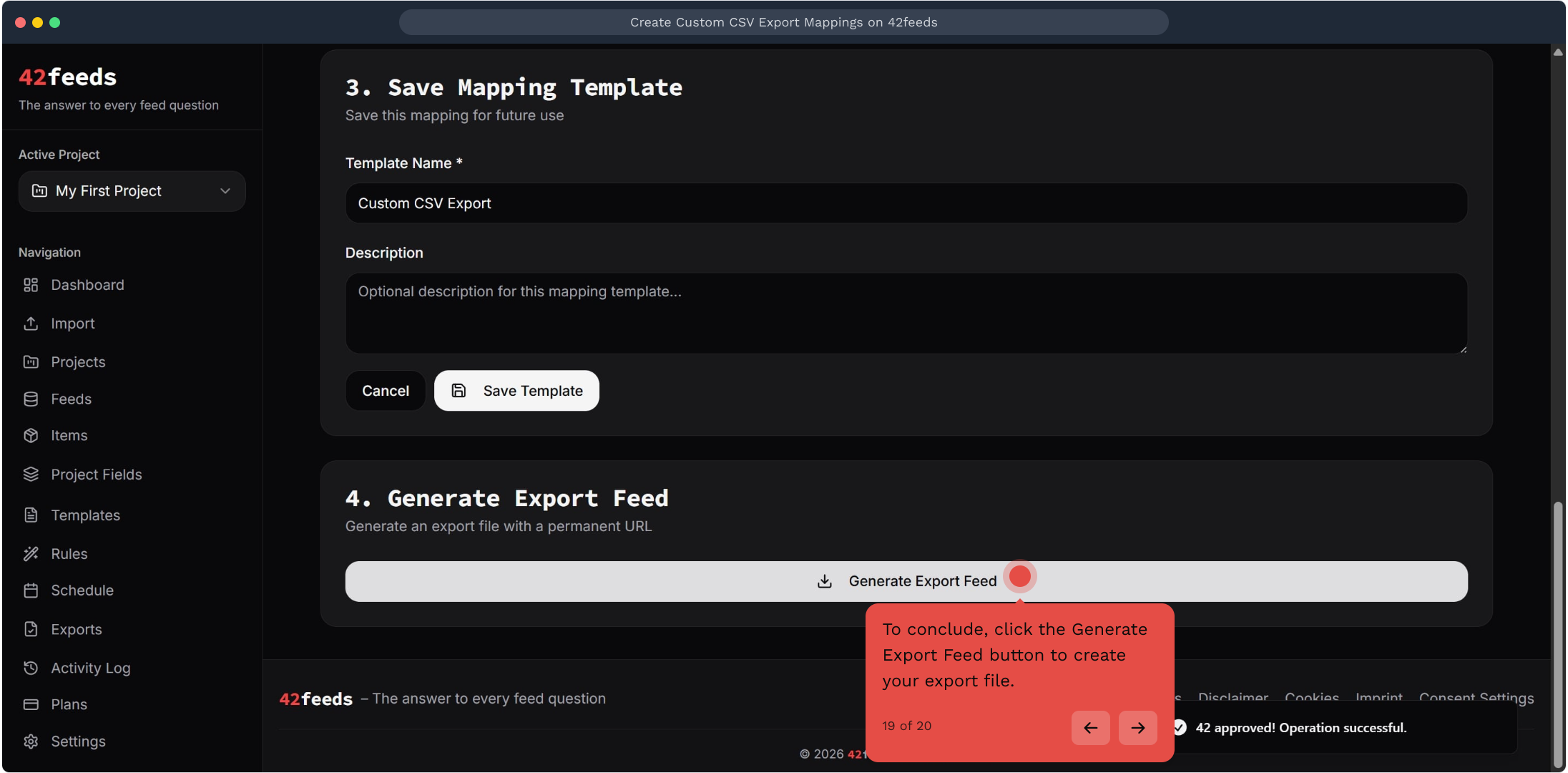
19. To conclude, click the Generate Export Feed button to create your export file
This workflow was created with Supademo.